Create a support request
A ticket keeps your request and the replies together. Include the affected page, your steps, the approximate time and the exact error message. Leave out passwords, sign-in codes and payment details.
If you are signed in
Help & Support in My Account opens the ticket form and your conversations.
-
Select My Account in the left sidebar and scroll to Help & Support.
-
Select Create a ticket now.
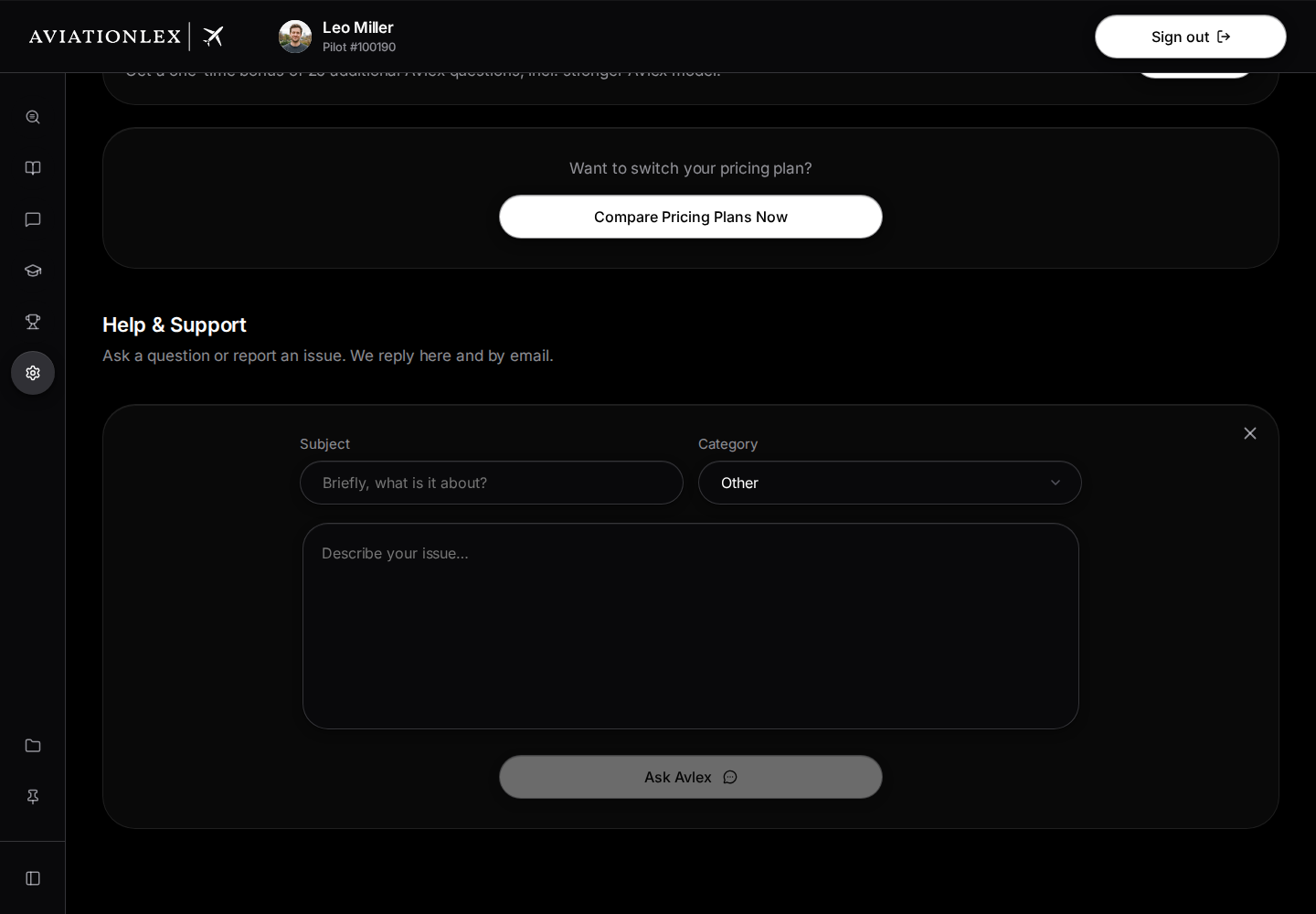
Open ticket form with subject, category and description. No message has been entered or sent. -
Fill in Subject and check Category. Describe your issue in at least twelve characters to enable Ask Avlex.
-
Select Ask Avlex and read the answer.
-
If it helped, select Yes, that solved it. This closes the form without creating a support ticket.
-
If you need more help, select No, contact support. This sends your request to support and creates the ticket.
Close (×) at the top right dismisses the form and returns to the ticket list.
If Avlex is unavailable, the view shows a notice and Send ticket. Use that button to send your request directly. If sending fails, read the message and check your ticket list before trying again.
If you cannot sign in
Email helpdesk@aviationlex.com if you cannot access My Account. Include the exact error message and the sign-in method you used. The ticket form in Help & Support requires you to sign in.
Read replies and add details
After signing in, open Help & Support and select a ticket from the list. Read the conversation. Add details in Write a reply…, then select the Send arrow at the right of the reply field. Enter adds a new line. For a long reply, Expand at the top right of the field gives you more space; Minimize reduces it again.
Close ticket only collapses the open ticket view. It does not mark the issue as resolved. Send support a message when your issue is solved. Tickets marked as resolved no longer have a reply field; the view explains that they will be deleted within 30 days. Create a new ticket for a new request. Avoid sending duplicates while an existing request is open.