Prepare for a support call
A call can help when you want to explain your issue in conversation. Find current contact details in the Aviationlex imprint .
-
Note the affected feature and the steps where the problem occurs. Have the exact error message ready.
-
For account-related help, check the Mobile number (optional) saved in your account. Update your contact details.
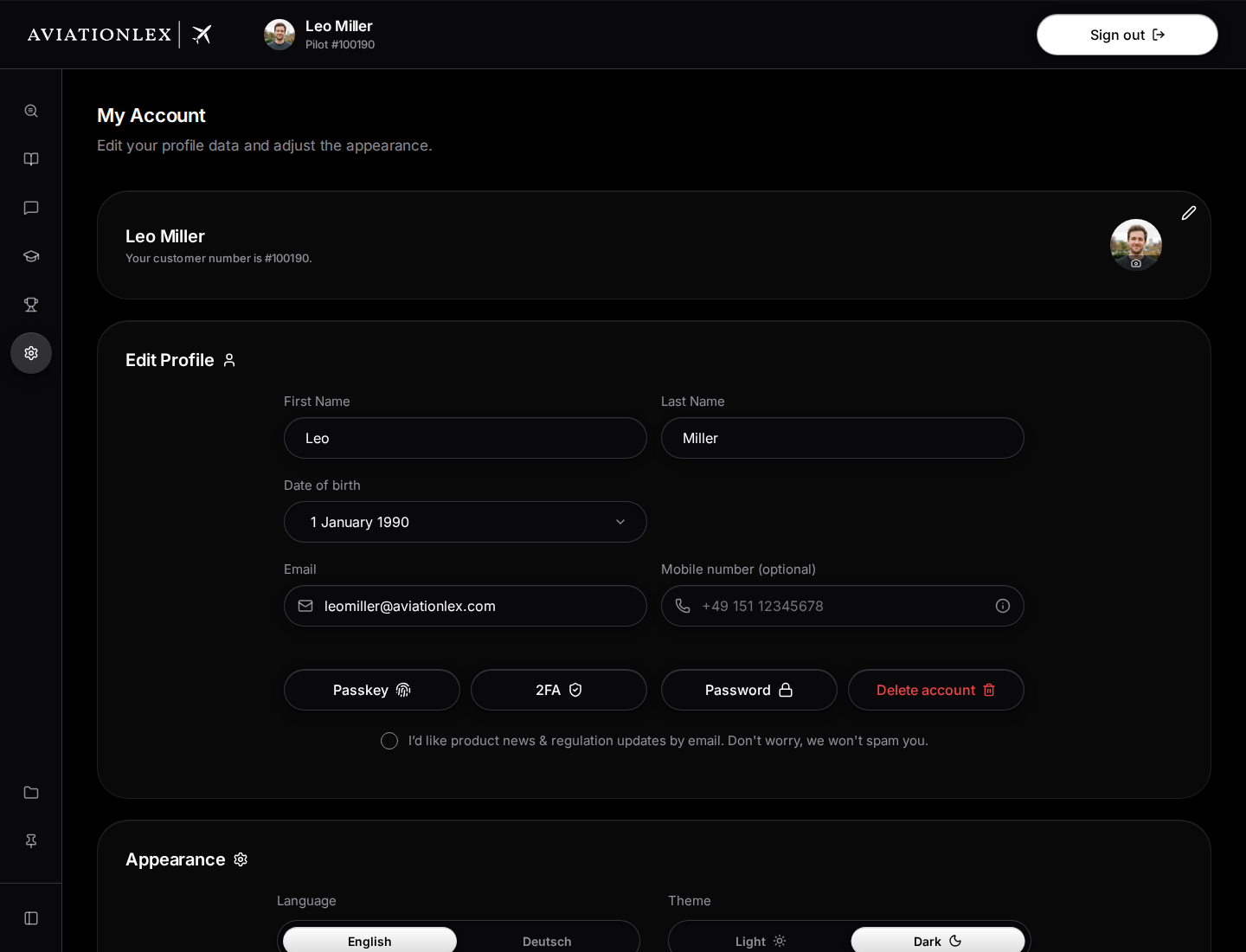
The mobile number field is next to the email in the profile details. -
Call the currently published phone number and explain your request. Do not share passwords, sign-in codes or card details.
-
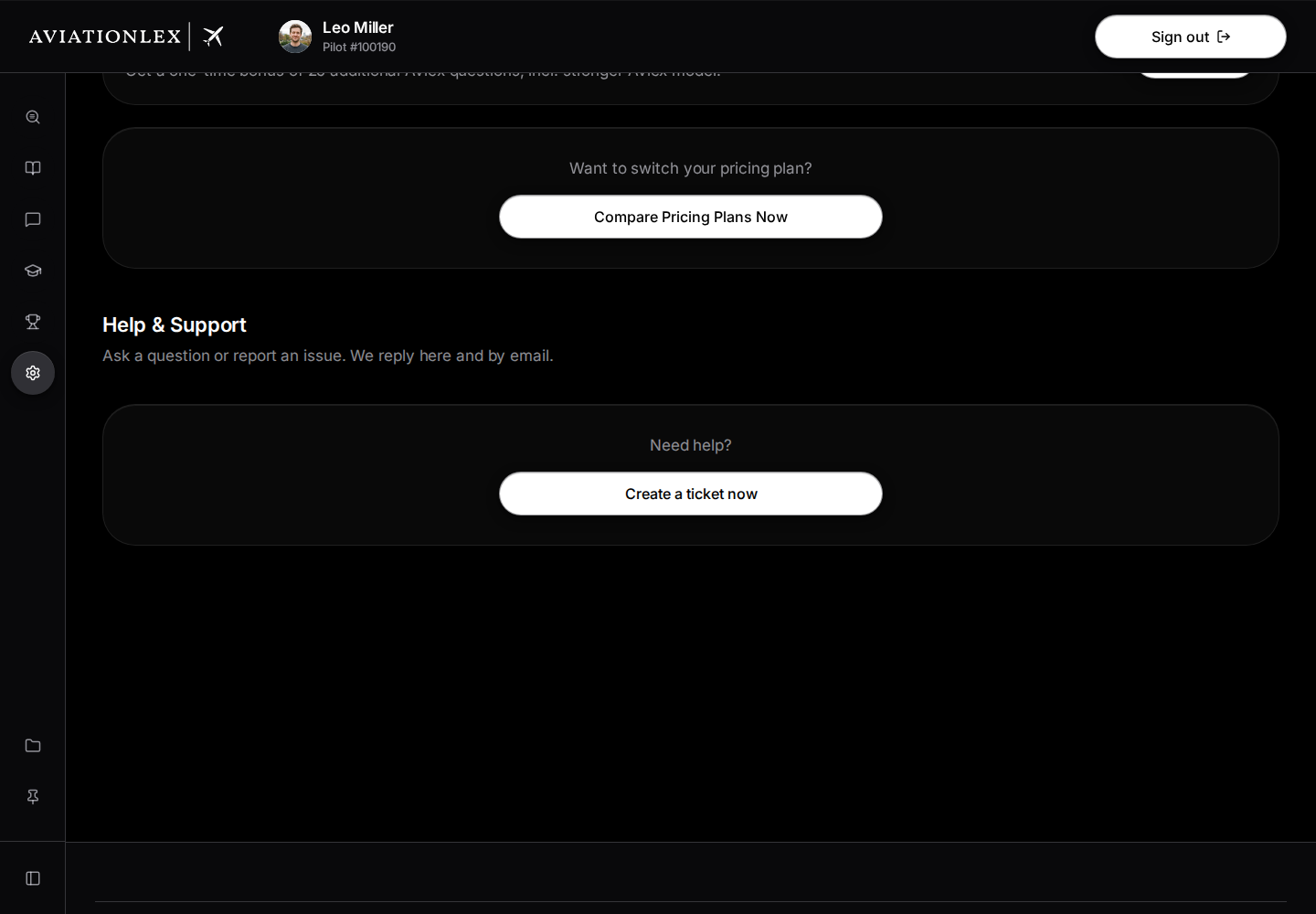
If the call created a ticket in your account, open My Account in the left sidebar, scroll to Help & Support and select its ticket card.
Check a recorded call
A linked call ticket may show Call transcript, above the message history, including the time and transcript. Automatic transcripts can contain errors. Check names, times and the description of your issue in particular.
To add or correct details, write in Write a reply… below the messages and select the upward arrow on the right (Send). Enter inserts a new line. Resolved tickets have no reply field; create a new ticket for a new request.
A call will not always appear as a visible ticket in your account. If you cannot find its assignment or prefer to write, follow the ticket guide.