Ask a question and check its sources
Ask Avlex helps you find regulations relevant to a specific question. Check its answer against the original passages before using it.
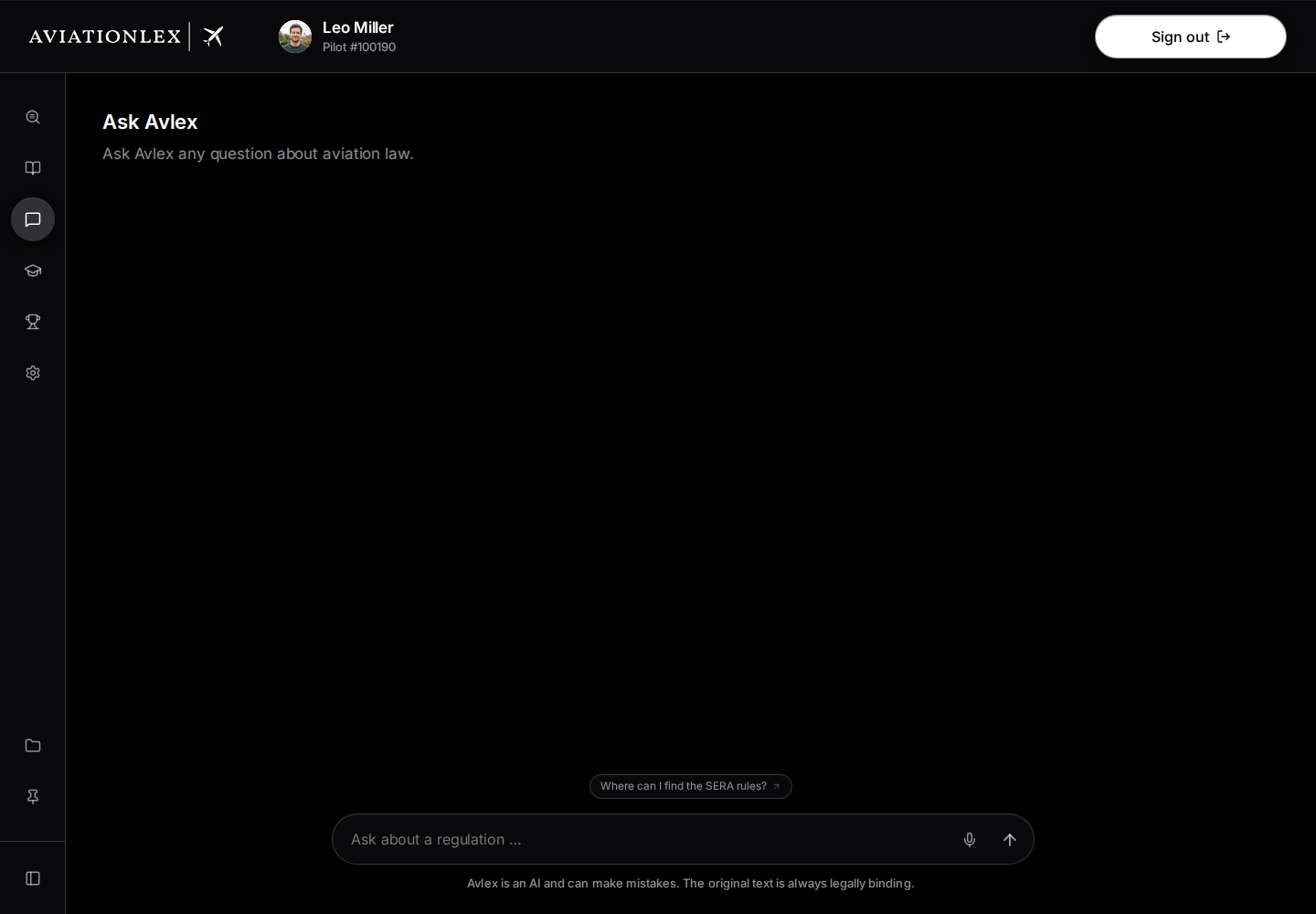
Send a question
The question field sits at the bottom of the Ask Avlex tab. Answers appear above it, with their source pills and answer controls.
-
Choose Ask Avlex in the left sidebar. On a phone, open the navigation menu first.
-
Type your question. Include the authority, activity and licence or aircraft type. Add the regulation if you know it.
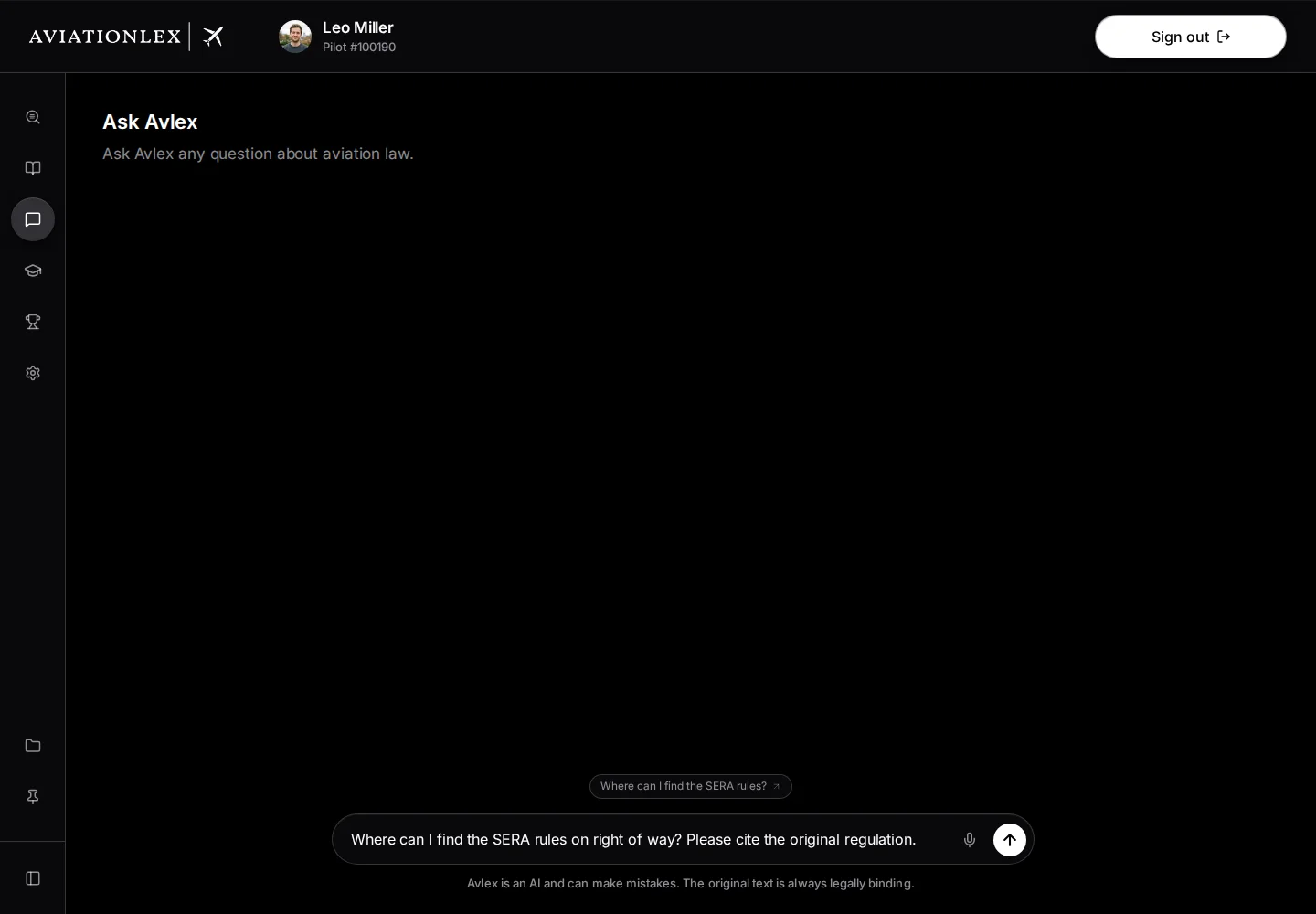
A specific question in the input field before sending. -
Choose Send or press Enter. Use Shift + Enter for a line break.
-
Read the answer and the notice describing its basis.
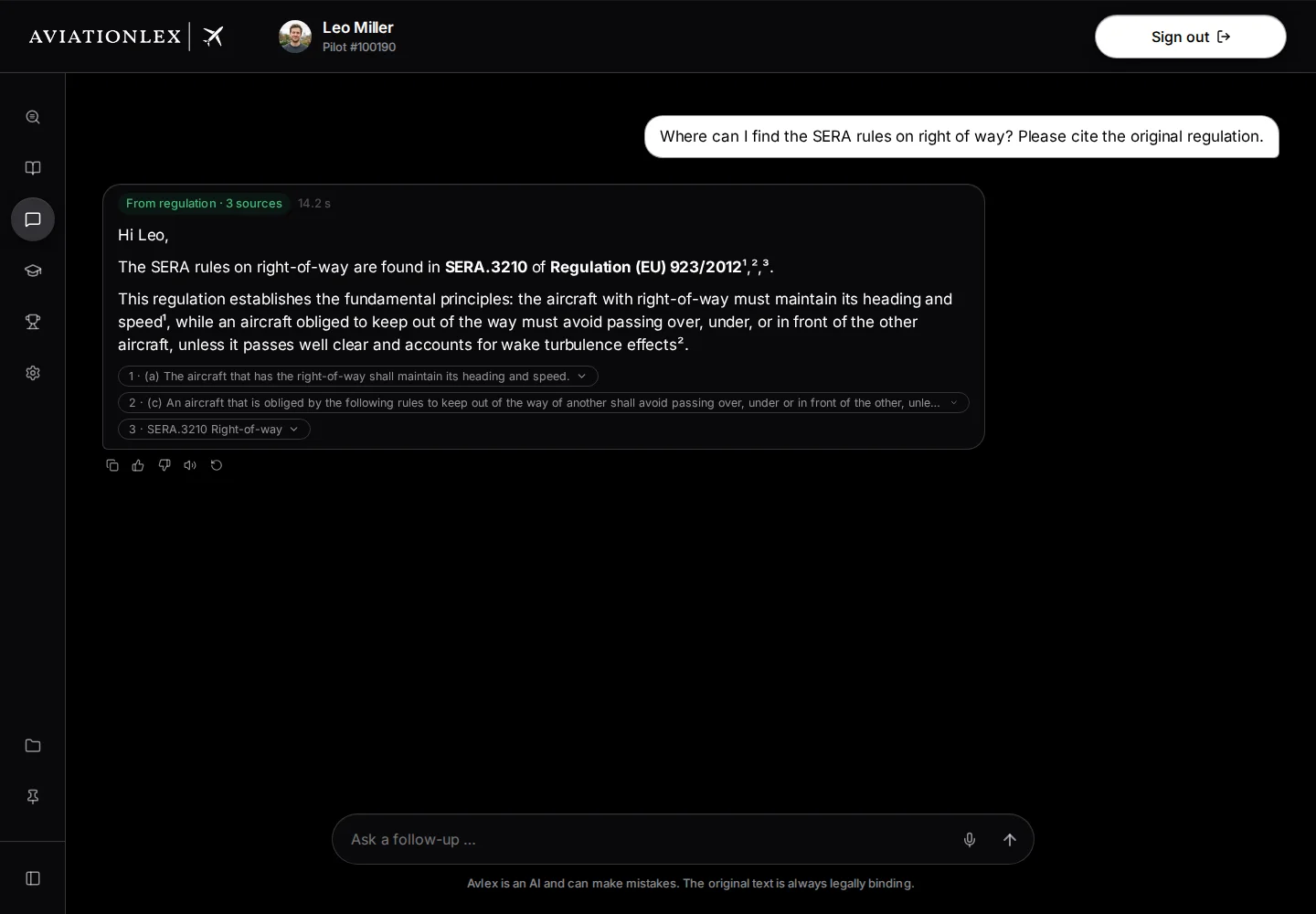
Answer marked From regulation with three numbered sources. -
Select a numbered source pill to expand the available original passage.
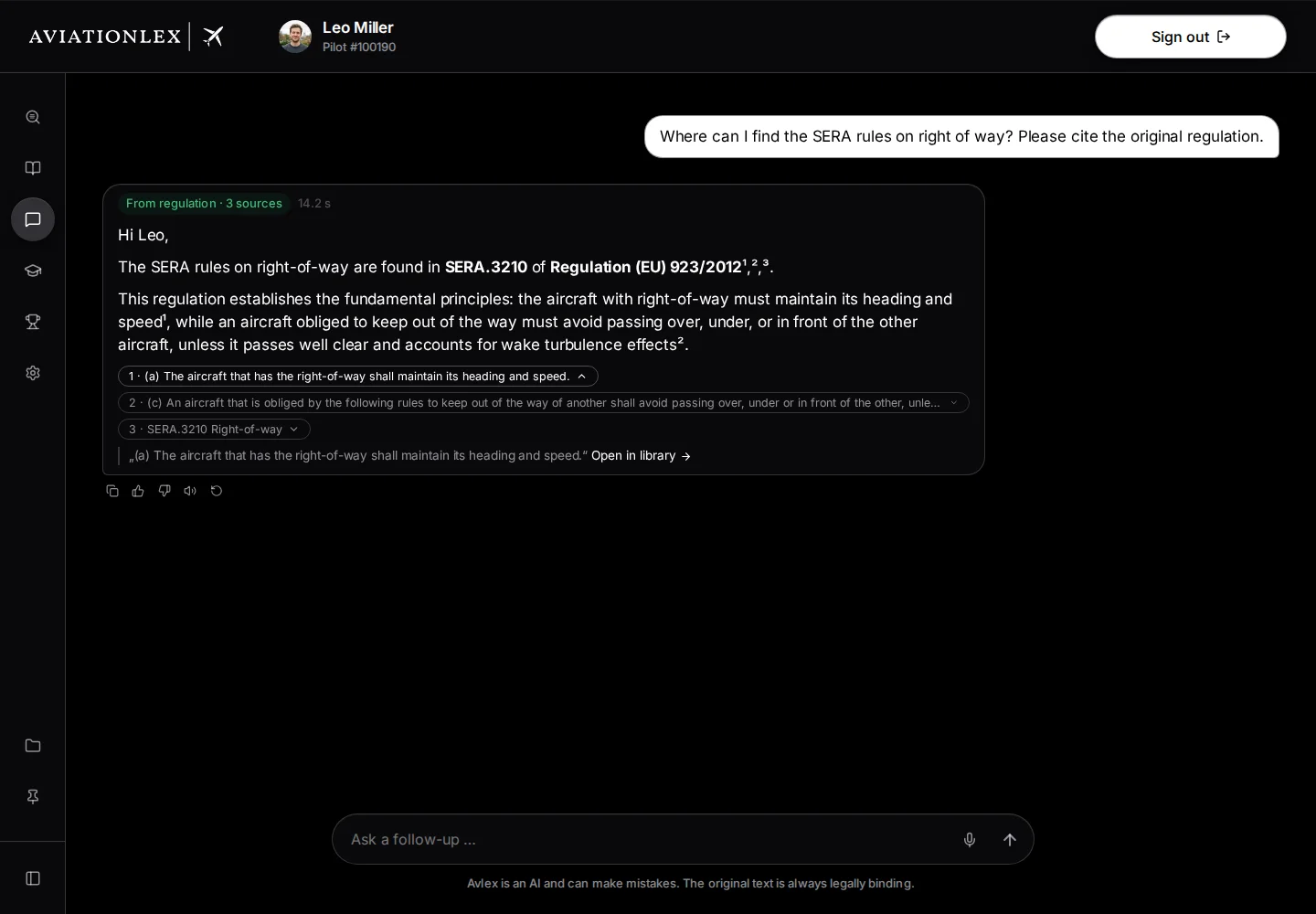
Expanded source pill with original text and library control. -
Choose Open in library. Check the version, context and scope there.
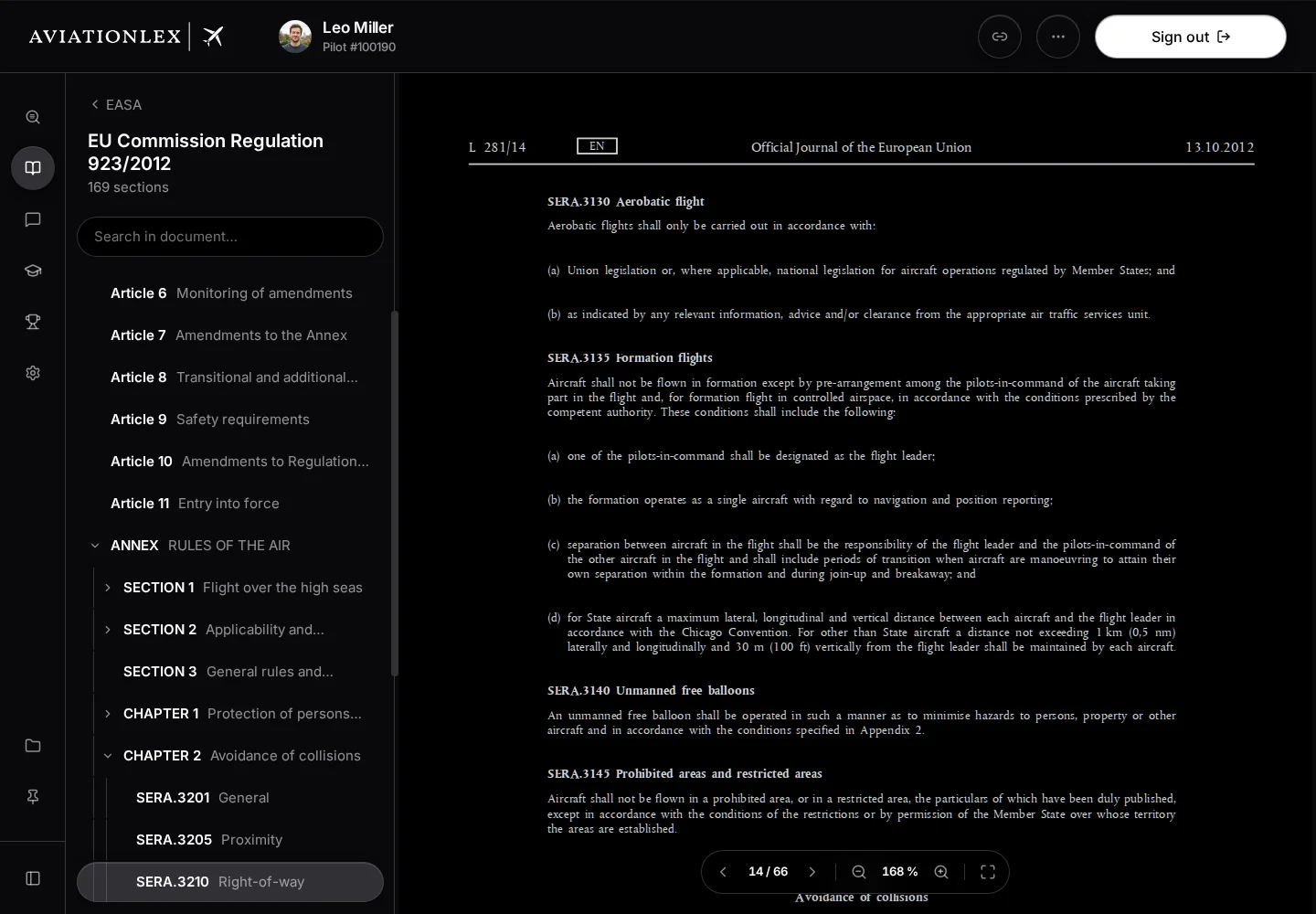
Original SERA.3210 provision in the library contents and PDF. -
Type a follow-up if you need to narrow down your circumstances.
If matching evidence is missing, see Understand an answer or refusal.
Expand a long question
The question field grows as you type. Once its text exceeds the normal height, Expand appears in its upper-right corner. Choose it to show a larger editor; Minimize restores the normal height. Neither control sends your question.
Queue more questions
Press Ctrl + Enter or Cmd + Enter to queue a question. Pressing Enter while an answer is running also adds your question to the queue. Queued questions are then sent in order.
The Queued list above the question field shows questions waiting to be sent. Click an entry to remove it before sending. Choose Stop to interrupt a running answer. The text already displayed may be incomplete.
Send a question again
Signed-in accounts may see up to three recent questions on the empty start screen. Clicking one sends its text as a new question. It does not reopen the earlier conversation.
Regenerate sends the last question again. Both actions may use more of your allowance. Copy places an answer on your clipboard. Use Helpful or Not helpful to give feedback on that answer.
If You’re out of questions appears, choose Upgrade plan to view the account options offered. Check the offer before making a purchase.