Sign in to your account
Sign in to use your saved documents, training modules and account settings. Use the email address and provider you registered with.
Open the sign-in page . For an institution account, use the sign-in address in your invitation. If the app directs you to a different access point, follow the sign-in link in that message.
With a login link
Magic Link sends a sign-in link to the email address of your existing account.
-
Select Magic Link.
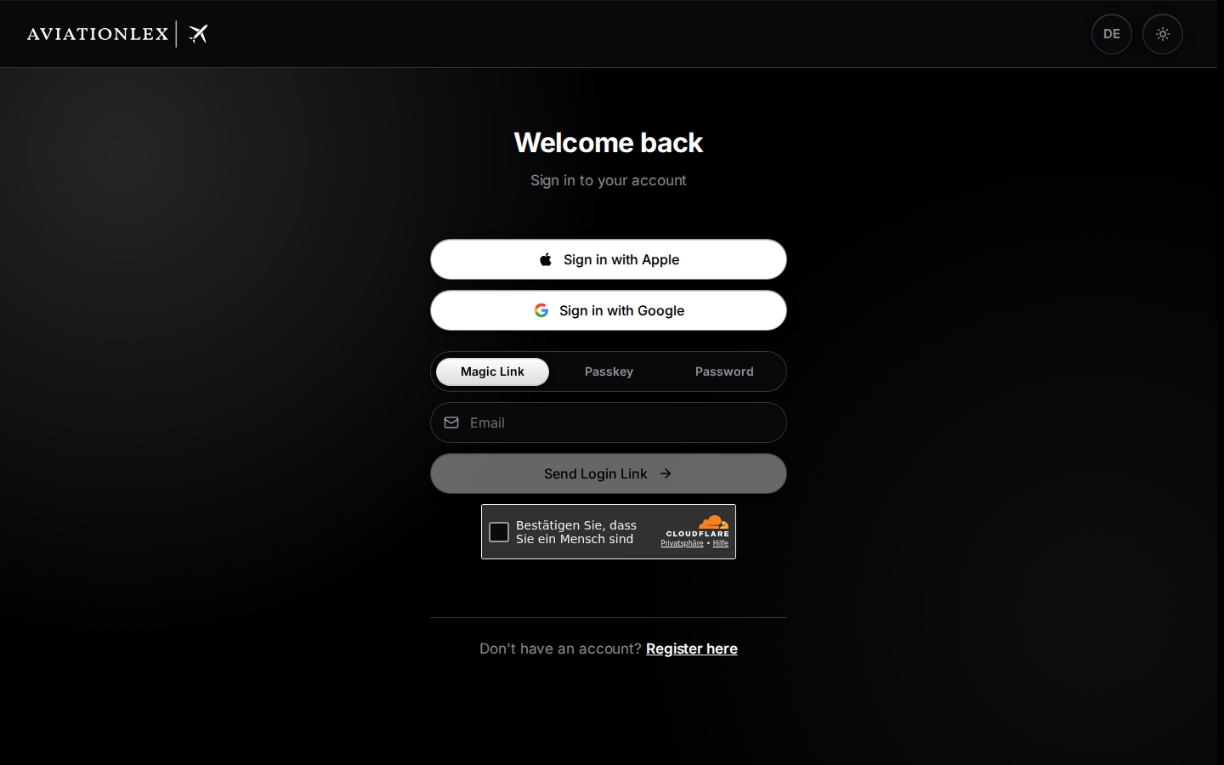
Sign-in methods in the Aviationlex app. -
Enter your Email and complete any security check shown.
-
Select Send Login Link.
-
Open your inbox and follow the link in the email.
After sending, the form shows Check your inbox. Use a different email returns to the sign-in form so you can change the address.
This method signs you in without entering a password. You need an existing account.
With a password or passkey
The sign-in page also offers password, passkey and provider sign-in methods.
- Select Password, enter your email and password, then select Sign in. Use the eye icon to check what you entered.
- If you have already set up a passkey, select Passkey, then Sign in with passkey. Confirm with your device or security key.
- For an account created with Apple or Google, you can select Sign in with Apple or Sign in with Google.
If you cannot sign in
If the email does not arrive, check the address you entered and your spam folder. If you see a message about too many attempts, wait before requesting another link.
Select Forgot password? to reset your password by email. You can set up a passkey in security settings after signing in.
If you cannot access your account, use the contact details in the Aviationlex imprint . Include the error message and the sign-in method you used.