Cancel a paid pricing plan
Switching to Free ends your paid individual pricing plan while keeping your account. Account deletion is a separate process.
Schedule a switch to Free
The pricing plan comparison in My Account starts the cancellation process.
-
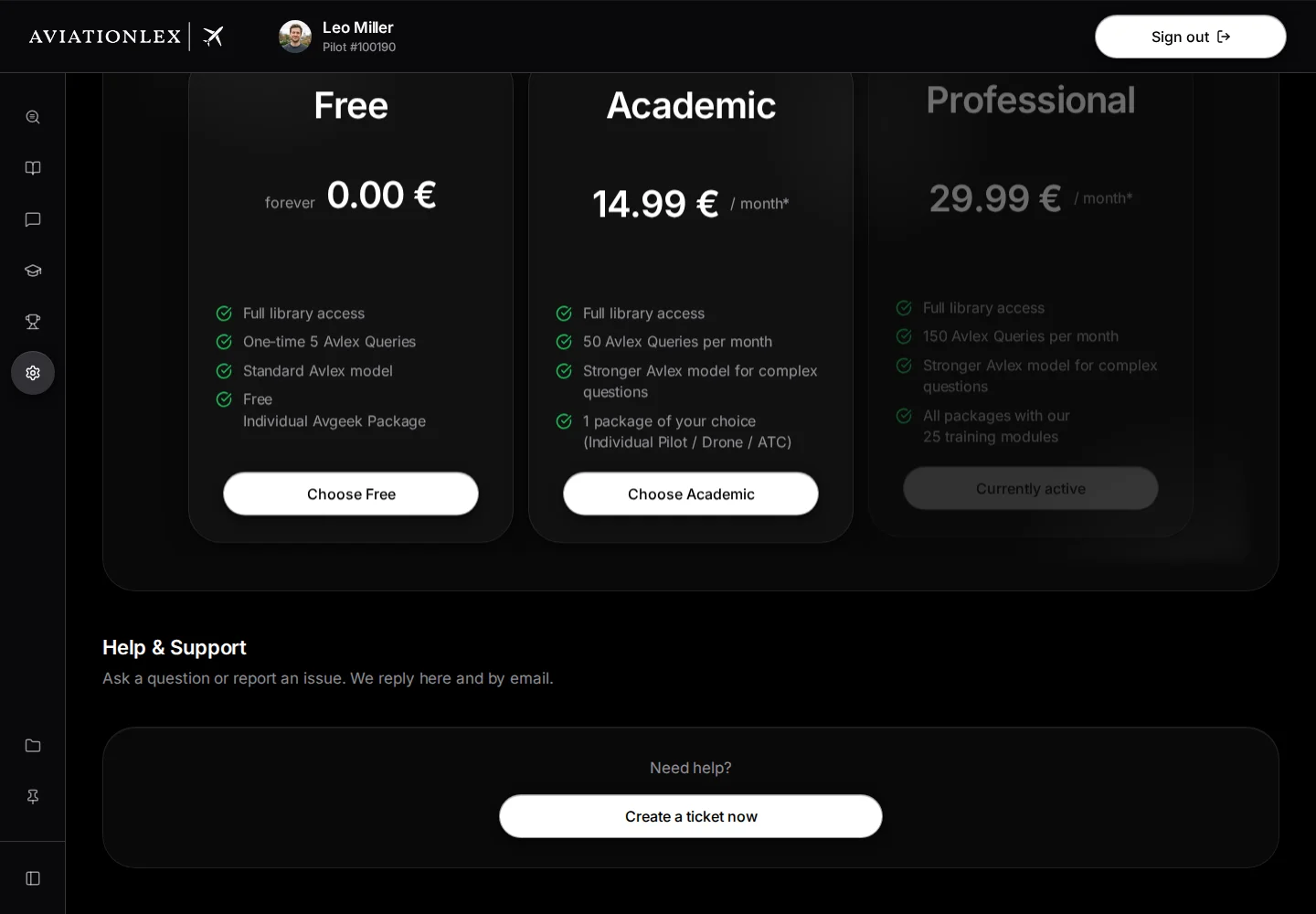
Select My Account in the left sidebar and scroll to Compare Pricing Plans Now.
-
Choose Compare Pricing Plans Now.
-
Select Choose Free on the Free tile if you currently have a paid plan. On a narrow screen, scroll the plan tiles sideways to find it. If you already use Free, its button shows Currently active and is disabled.
-
Read Cancel subscription?. The dialog explains the switch at the end of the current period.
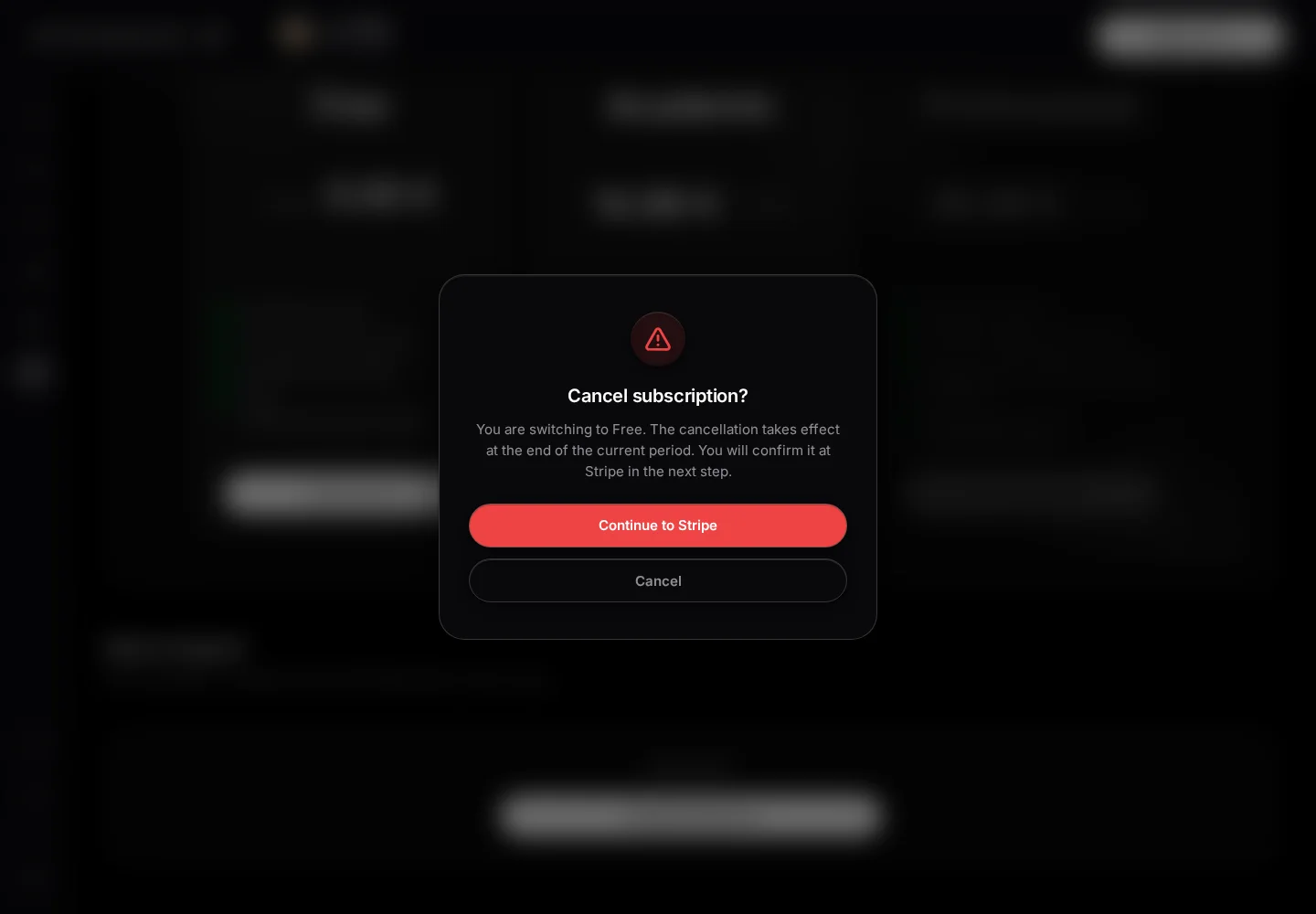
App cancellation dialog before continuing to Stripe; Cancel keeps the subscription unchanged. -
Choose Continue to Stripe.
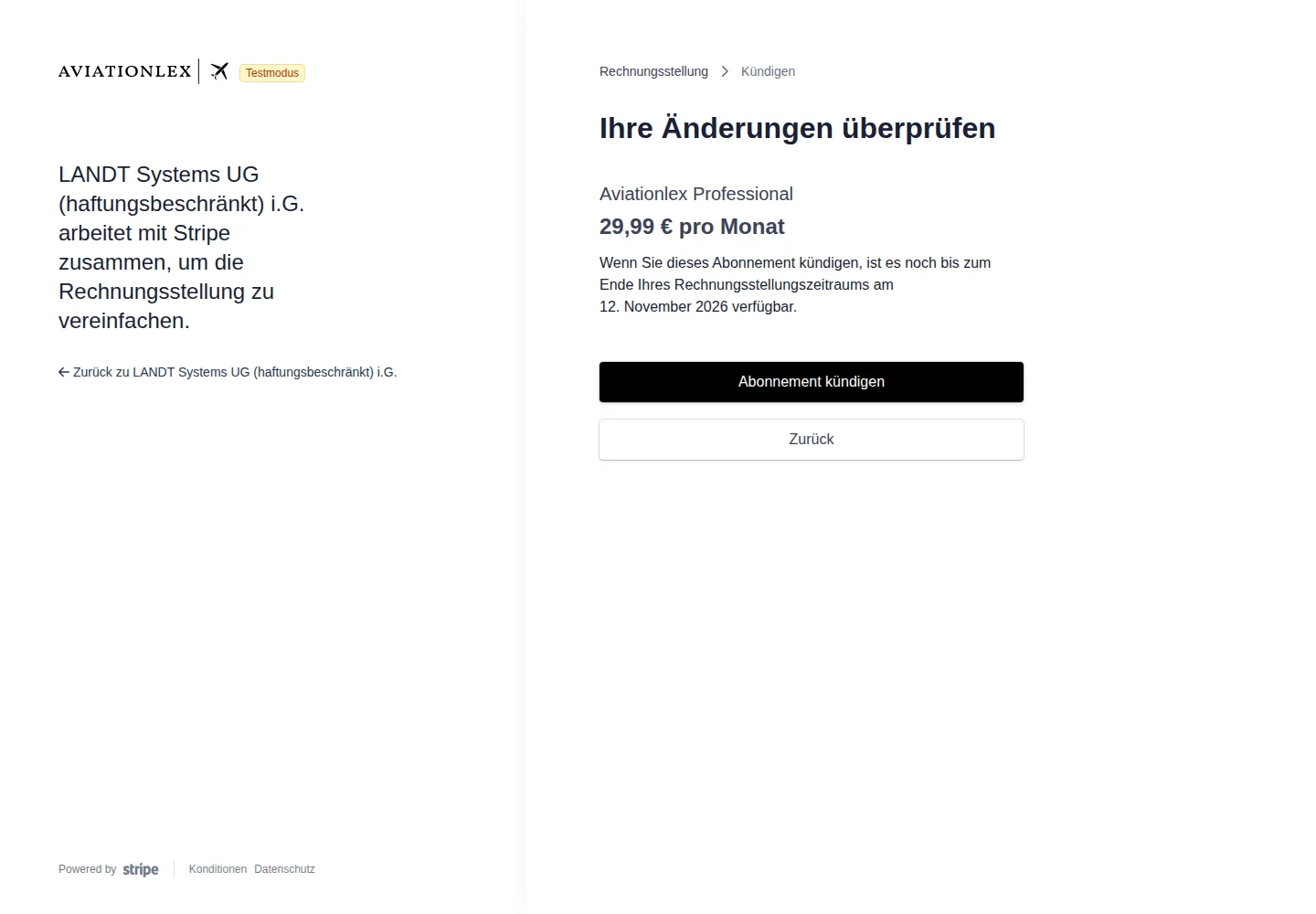
Stripe shows the end of the billing period before final cancellation confirmation. Cancellation was not confirmed. -
Check and confirm the cancellation at Stripe.
-
Return to My Account. Select the pencil at the top right of Active pricing plan to open its details. The scheduled switch and its date appear below the detail tiles if the target plan differs from your current plan.
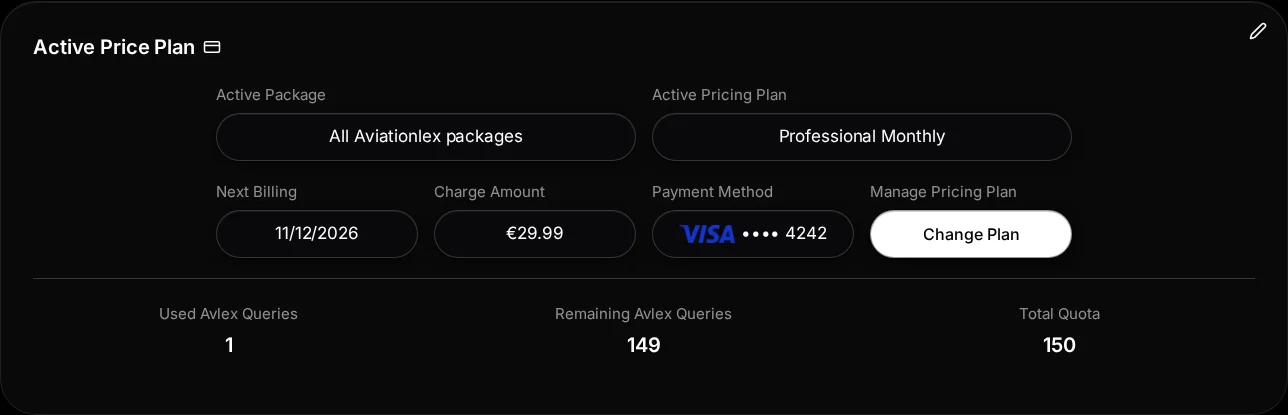
Expanded details of the still active Professional subscription. A scheduled change would appear here.
Choosing Cancel in the first dialog leaves your plan unchanged. Continue to Stripe alone does not confirm cancellation.
After confirmation
Your current plan remains in place until the displayed switch date. Free applies afterwards. Check the confirmation and the date shown.
If the app says Already scheduled, read the date in that notice. You do not need to request an already scheduled switch again. If the status is unclear after returning, check the billing portal or contact support.
To switch to another paid plan, use the pricing plan guide. Enterprise billing is managed separately for the organisation.