Secure your sign-in
In My Account , you can change your password, enable a second factor and set up passkeys. Choose the pencil at the top right of the card with your name. The editable account details contain the Password, 2FA and Passkey controls.

Change your password
The Password control starts the password change with email confirmation.
-
Choose Password.
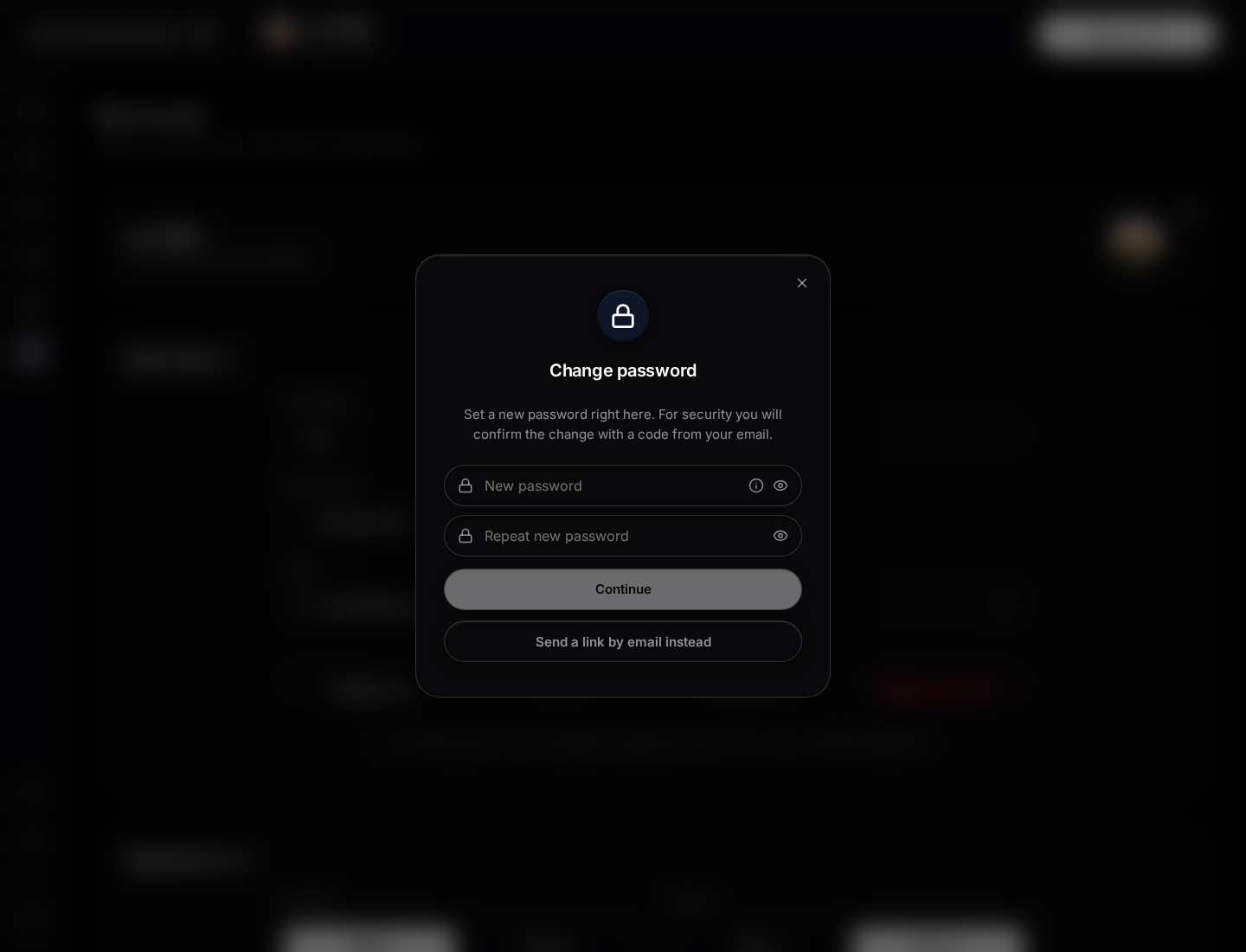
Password dialog before entering or confirming anything. -
Complete New password and Repeat new password. Follow the displayed password requirements.
-
Choose Continue. The app emails you a confirmation code.
-
Enter the 6-digit code.
-
Choose Save password and check the confirmation.
You need access to your email for this. Choose Send a link by email instead, then Send link, to use the alternative recovery route. If you cannot sign in, use password recovery on the sign-in page.
At the confirmation-code step, Back returns to the password fields and clears the code you entered. In the email-link dialog, Back to changing it directly returns to those fields. Closing the password dialog discards the passwords and code entered there.
Enable two-factor authentication
A second factor adds a code from your authenticator app to the sign-in process.
- Choose 2FA.
- Scan the QR code with an authenticator app. Alternatively, use the manual setup key shown.
- Enter the current six-digit code from that app.
- Choose Activate. After confirmation, the control shows 2FA on.
- Supply the authenticator code when asked during later sign-ins.
To remove it, open 2FA on and choose Remove 2FA. Keep access to your authenticator app. If you lose it, contact support. Do not share setup keys or current codes.
Set up a passkey
A passkey lets you sign in using the biometrics or security key offered by your device.
- Choose Passkey.
- Choose Set up passkey.
- Confirm the setup in your device’s dialog.
- Check for Passkey created. The account control then shows Passkey on.
Open Passkey on to choose Add another passkey. Remove passkey removes the passkeys registered for this account. Make sure you can still sign in before removing them. Your browser and device determine which passkey methods are available.
Cancel closes the first-time passkey setup. If a passkey is already active, Close dismisses the dialog without adding another passkey or removing existing ones.