Read a regulation in the Library
The Library combines a regulation’s structure with its original PDF. You can read a passage and check the surrounding sections.
-
Select Library in the left sidebar, or open a Search result.
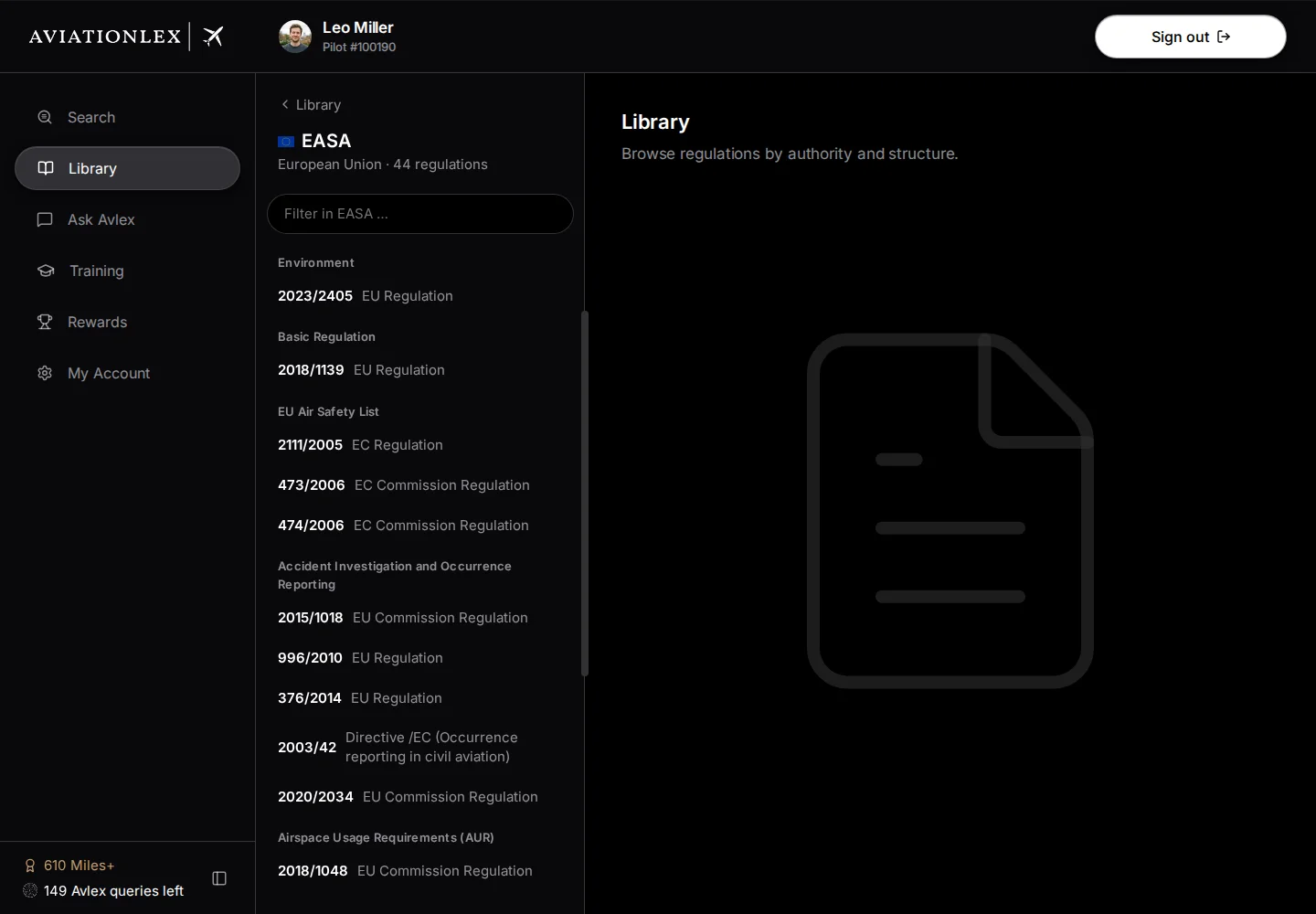
EASA regulations grouped by topic; each tile opens a regulation. -
In the left column, select an authority under Your authorities or More authorities. Search regulation or authority … filters the list as you type and also finds regulations directly.
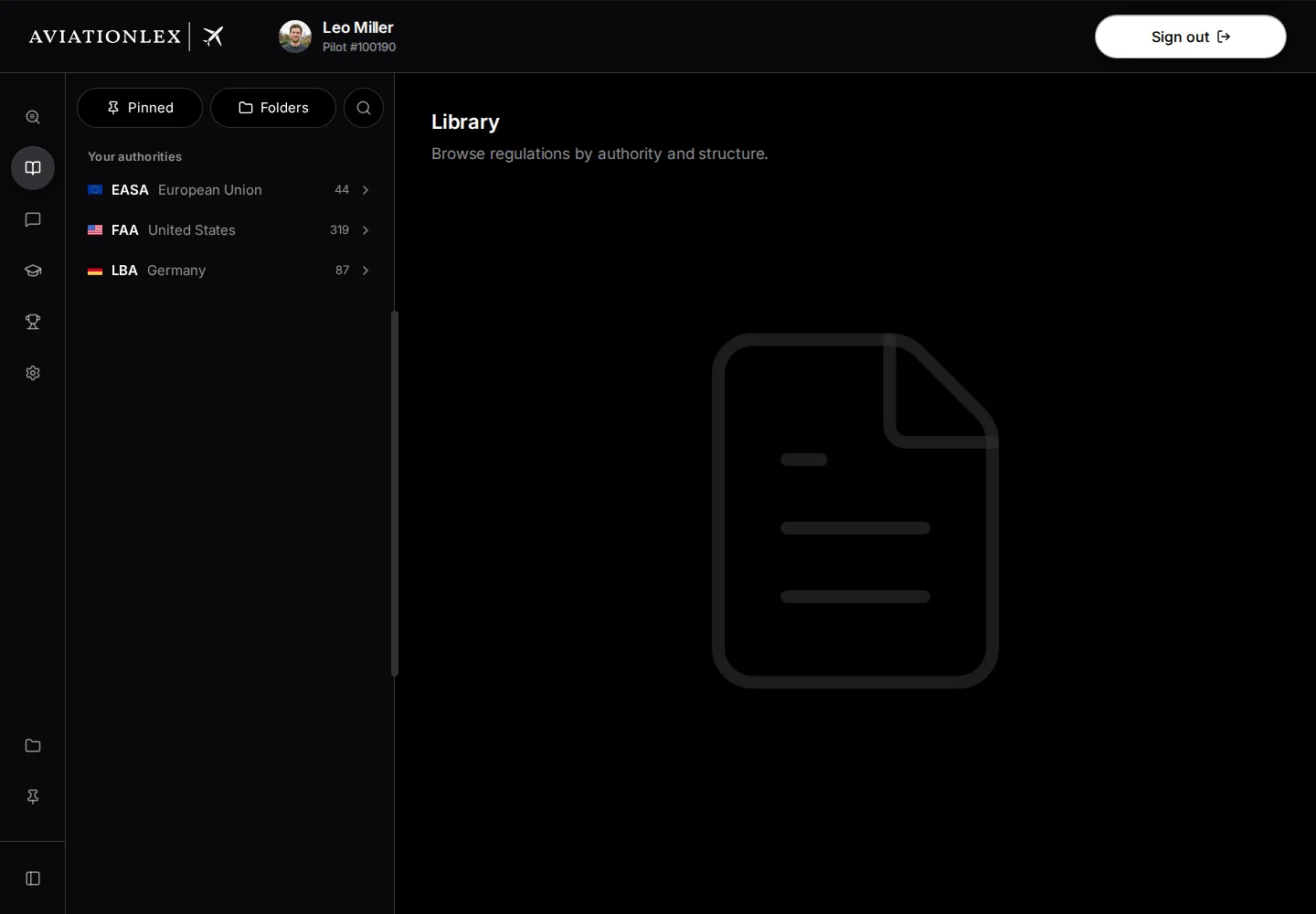
Library authority selection. -
Inside an authority, Filter in … filters its regulations. Select a regulation to open its table of contents. The back button above the list, labelled Library, returns to the authority list.
-
In the table of contents, Search in document… filters section numbers and headings. It does not search the PDF’s full text. Clear the field to restore the full structure.
-
Select a chapter or section to read its passage in the PDF. A row with a chevron opens its branch; selecting the same open row again collapses it. The back button above the document title returns to the authority’s regulations.
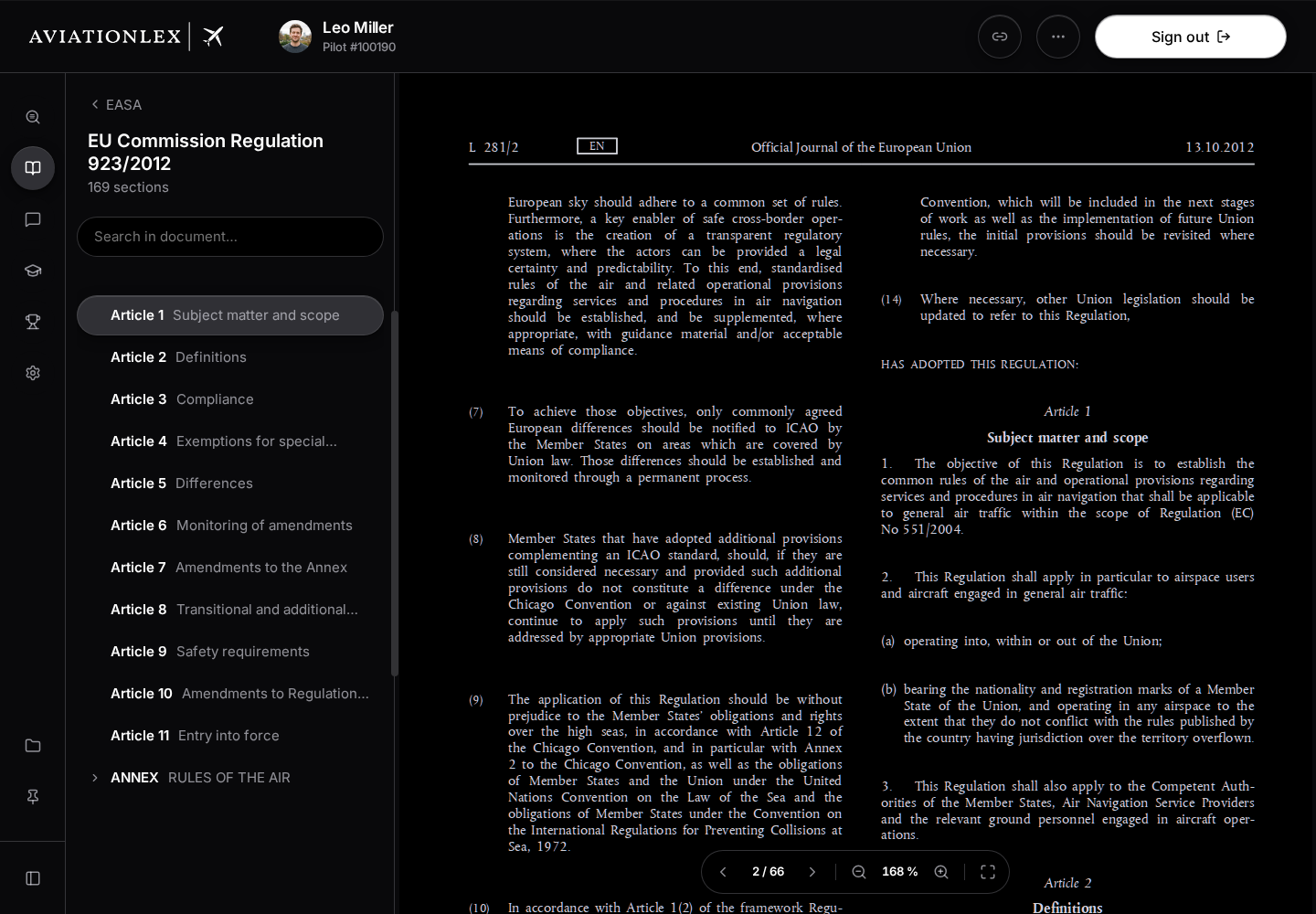
Article 1 of regulation 923/2012 with table of contents and original PDF. -
Check the document’s title and version. On a phone, the PDF replaces the left column; ← Overview above the PDF returns to the same regulation’s table of contents.
From Ask Avlex, first expand the source entry, then select Open in library. Check an answer’s sources.
Make room to read
On a wide screen, drag the divider between the hierarchy and document to adjust their widths. Double-click the divider to collapse or reopen the hierarchy.
Turn pages and zoom
The reading toolbar at the bottom of the PDF shows the current page and total page count, for example 3 / 20.
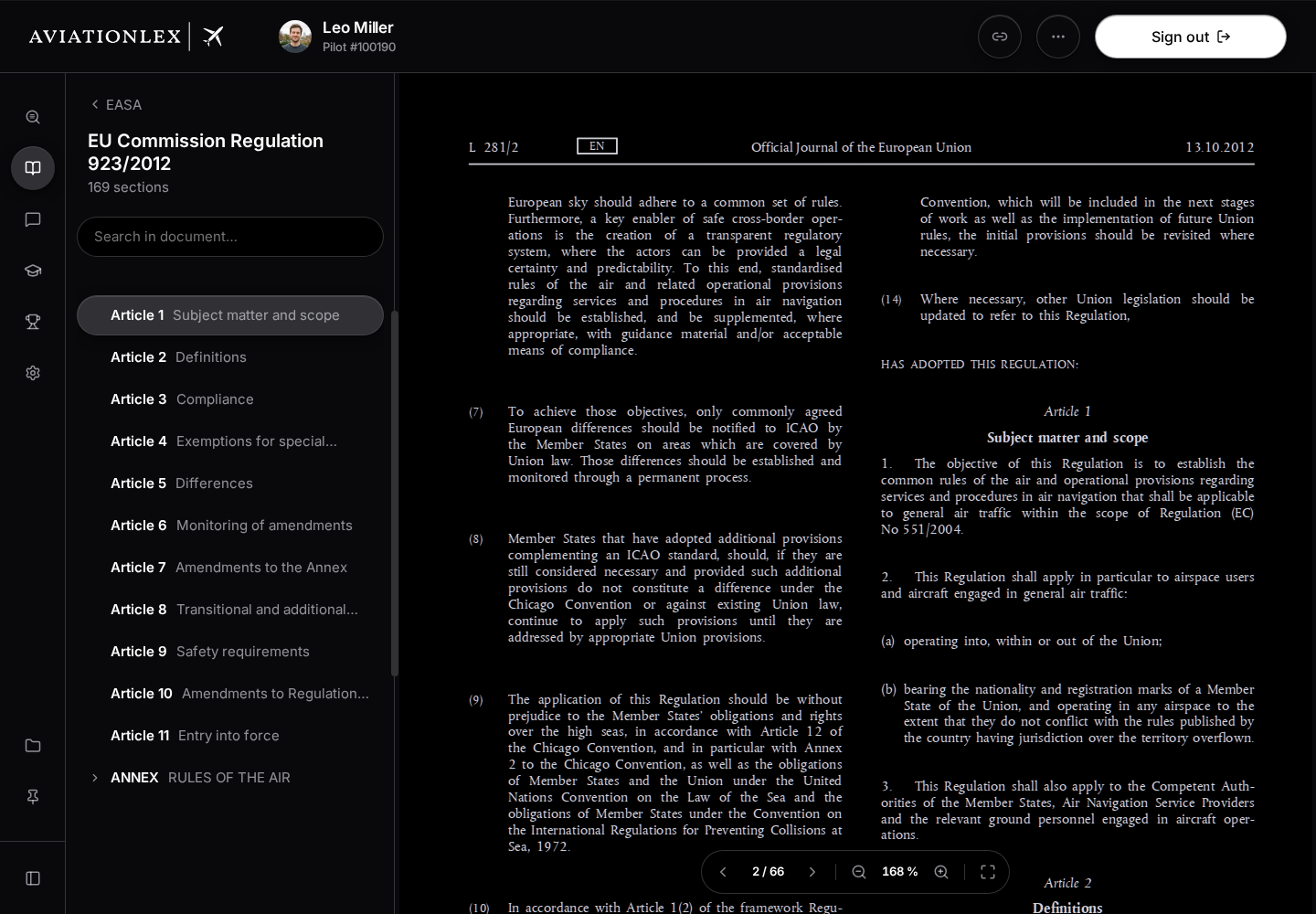
- Previous page and Next page move back or forward one page. The corresponding button is disabled at the start or end of the document.
- Zoom out and Zoom in change the view; the percentage shows the zoom level.
- Fullscreen expands the reading area. Exit fullscreen restores the normal view.
The toolbar hides as you scroll down and reappears when you scroll up or reach the bottom. On a phone, it shows only the page controls; use a two-finger gesture to zoom.
A source with a page reference may take you directly to that PDF page. Highlighted references in the PDF jump to the relevant passage or open another regulation. After a jump within the same regulation, Back to … at the front of the toolbar returns you to the previous passage. After opening another regulation, use your browser’s Back button. To return later, save the document or section.
Open the PDF tools
The … (More) button at the top right opens the tools for the loaded PDF.
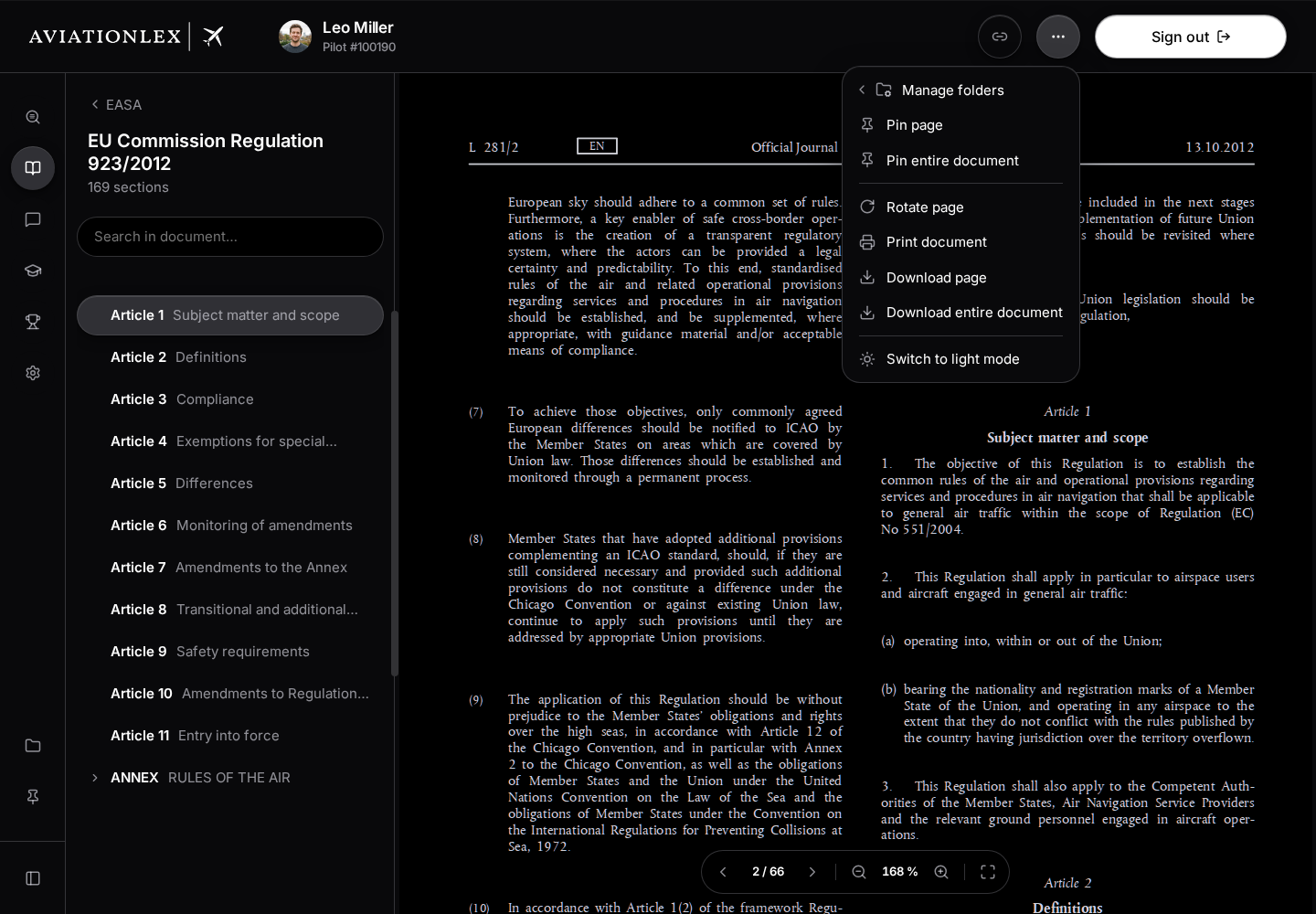
- Rotate page turns the view by 90 degrees and fits it to the reading area.
- Print document opens the print dialog for the original PDF. Choose the pages and printer there. Printing uses the original without the app’s rotation or dark mode.
- Download page saves the page you are viewing as a separate PDF.
- Download entire document opens the original PDF in a new browser tab. Use your browser’s PDF controls to save it.
- Switch to dark mode or Switch to light mode changes the PDF appearance. After changing the app theme or reloading, the PDF follows the app theme again.
The actions for pinning, unpinning and assigning folders are explained under saving passages.
If the PDF does not load
Select Try again. If the original remains unavailable, send support the regulation title and displayed error message. Check the official source if you need the passage before the problem is resolved.