Manage payments and invoices
The billing portal provides the payment and invoice options for your paid individual pricing plan. Check which changes it offers for your subscription.
Open the billing portal
My Account opens the payment provider’s management page for your subscription.
-
Open your account .
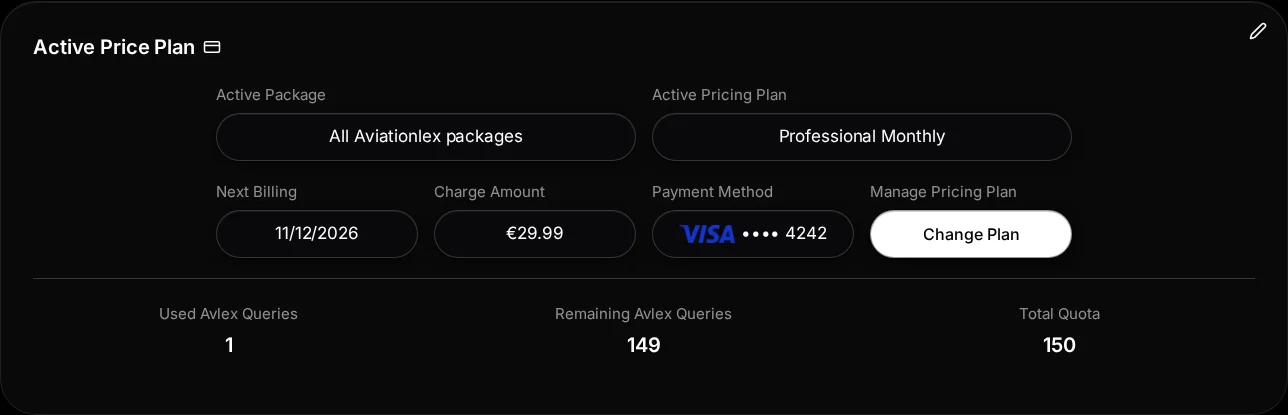
Active Professional plan with next billing date, payment method and query quota. -
Select the pencil at the top right of the Active pricing plan card to expand its details.

The pencil expands the active plan details. -
Under Manage Pricing Plan, choose Change Plan, if offered.
-
The app opens the billing portal. Select the payment or invoice option you need there.
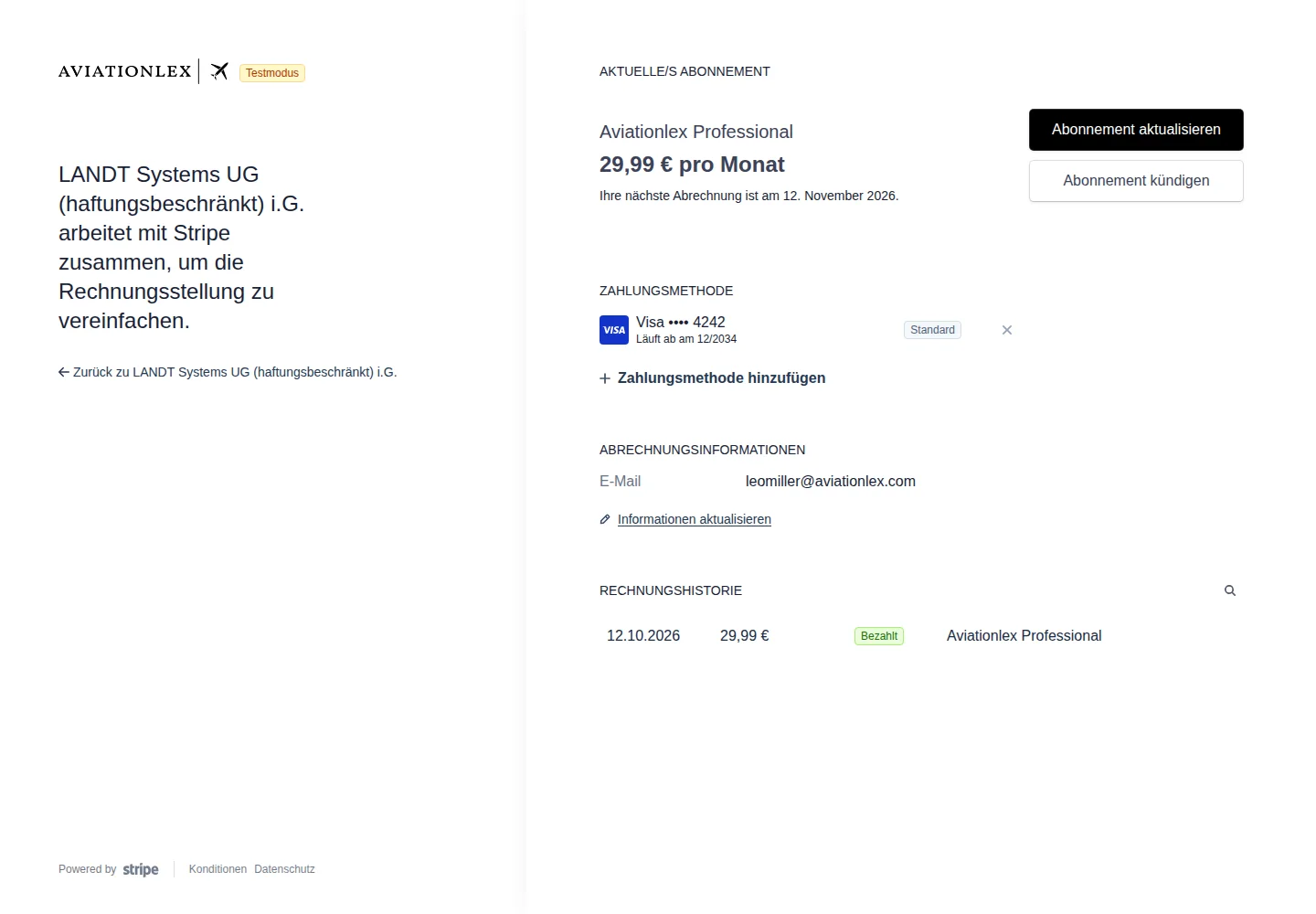
Stripe test portal for the approved test account, showing the active subscription, payment method and invoice history. -
Check all details before confirming a change.
-
Return to Aviationlex and check the pricing plan displayed.
The control opens management at Stripe. Available functions depend on your subscription. For a new plan, see the pricing plan guide. To end a paid plan, see the cancellation guide.


View an invoice and receipt
A paid invoice opens its own details page with the receipt.
-
Select the paid invoice you need under Invoice history. The invoice page shows the amount, invoice number, payment date and payment method.
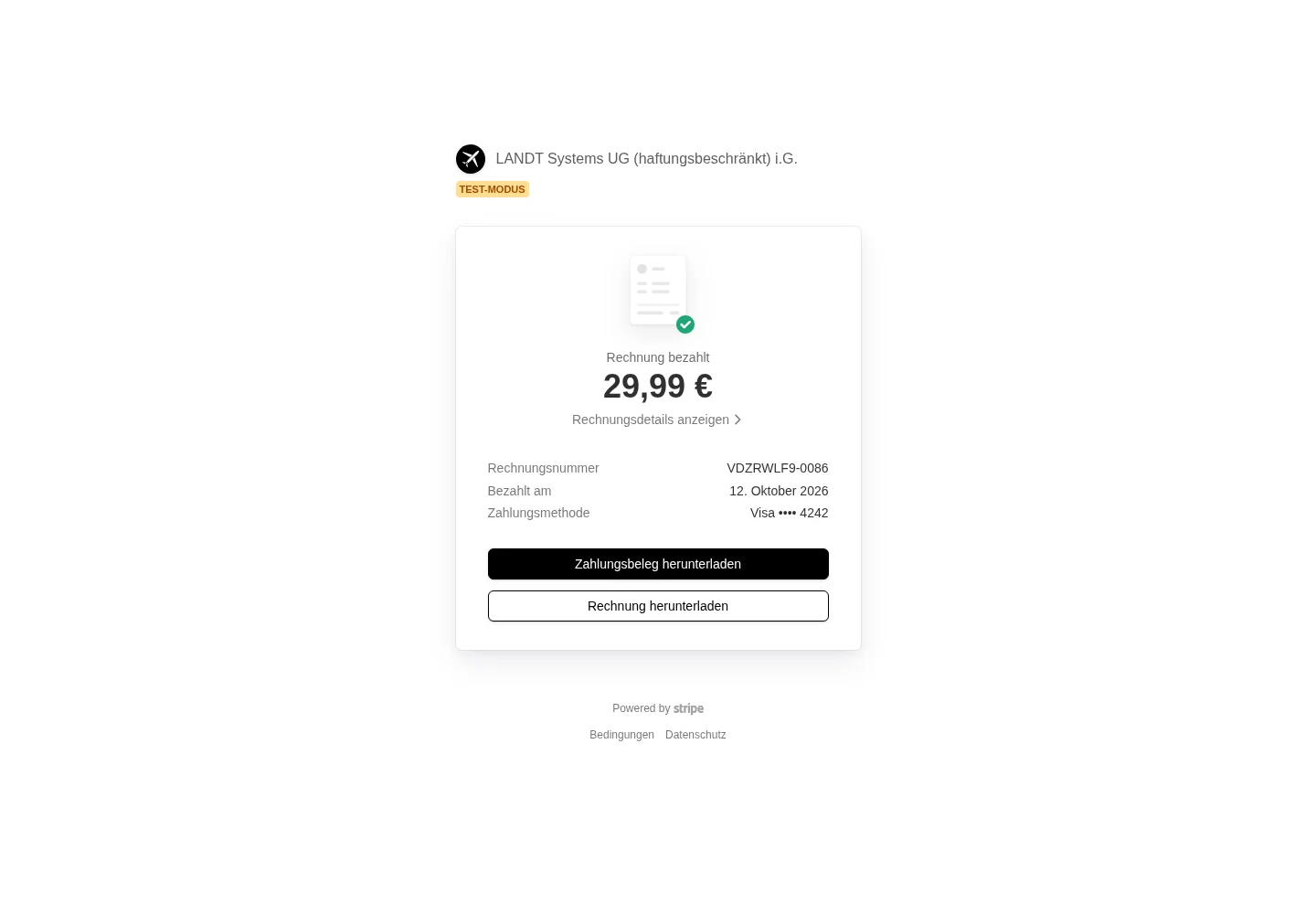
Paid invoice in Stripe test mode with invoice and receipt download controls. -
Select View invoice details to read the billing period, line items and payment history.
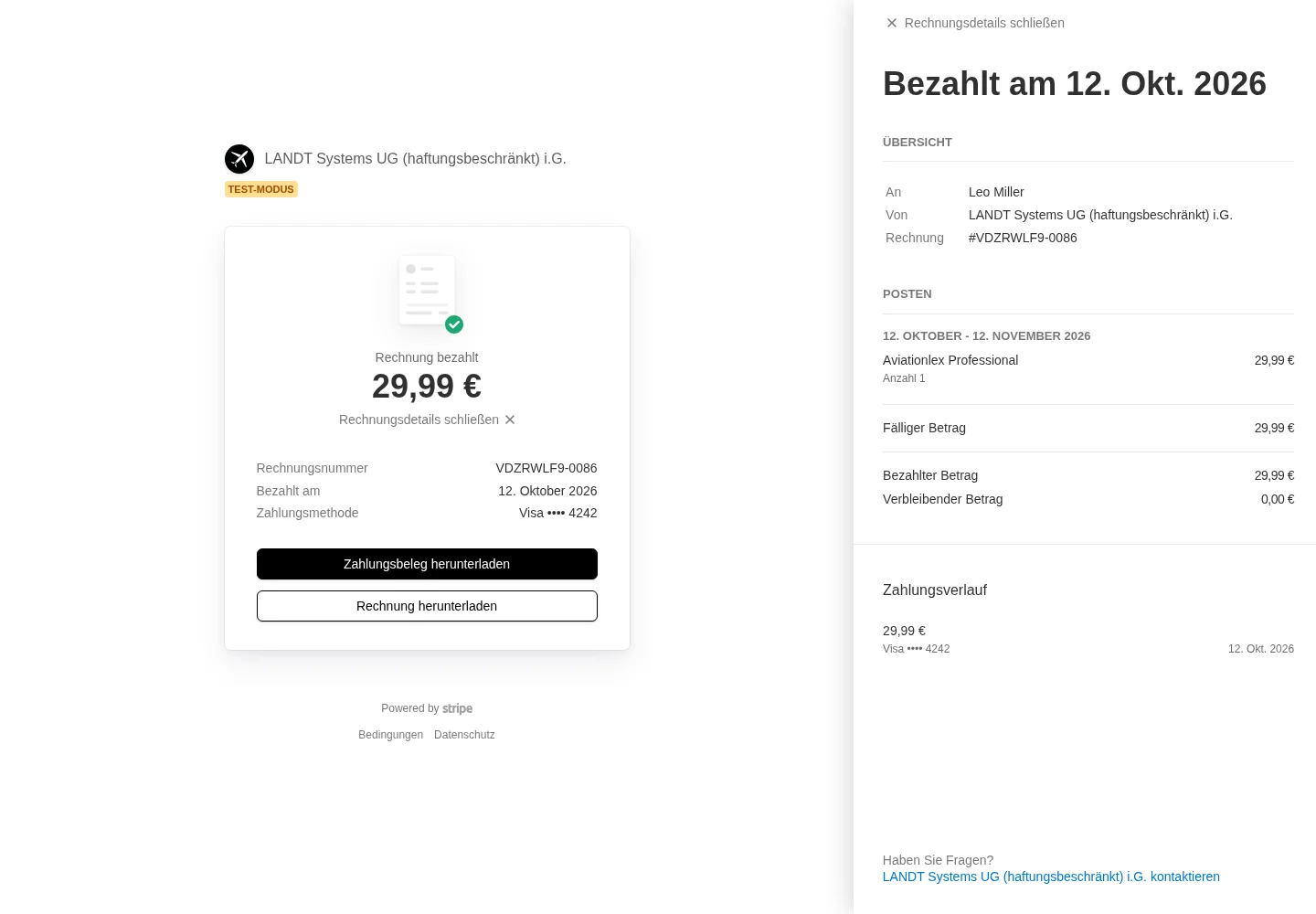
Expanded invoice details show the billing period, Professional line item and paid amount. -
Use Download invoice and Download receipt to save the available documents.
If management does not open
Read the error message and try again later. If it persists, include the time and exact message in a support ticket. Do not send full payment or card details.
If you see a payment notice, check the payment options offered in the portal. Manage organisation billing in the Enterprise area, separately from your individual pricing plan.