Earn Miles+ and redeem rewards
Miles+ reward your use of Aviationlex. Open Rewards to check your balance and choose available rewards. The programme is for private customers. Organisation members do not have Rewards access.
Read your balance and leaderboard
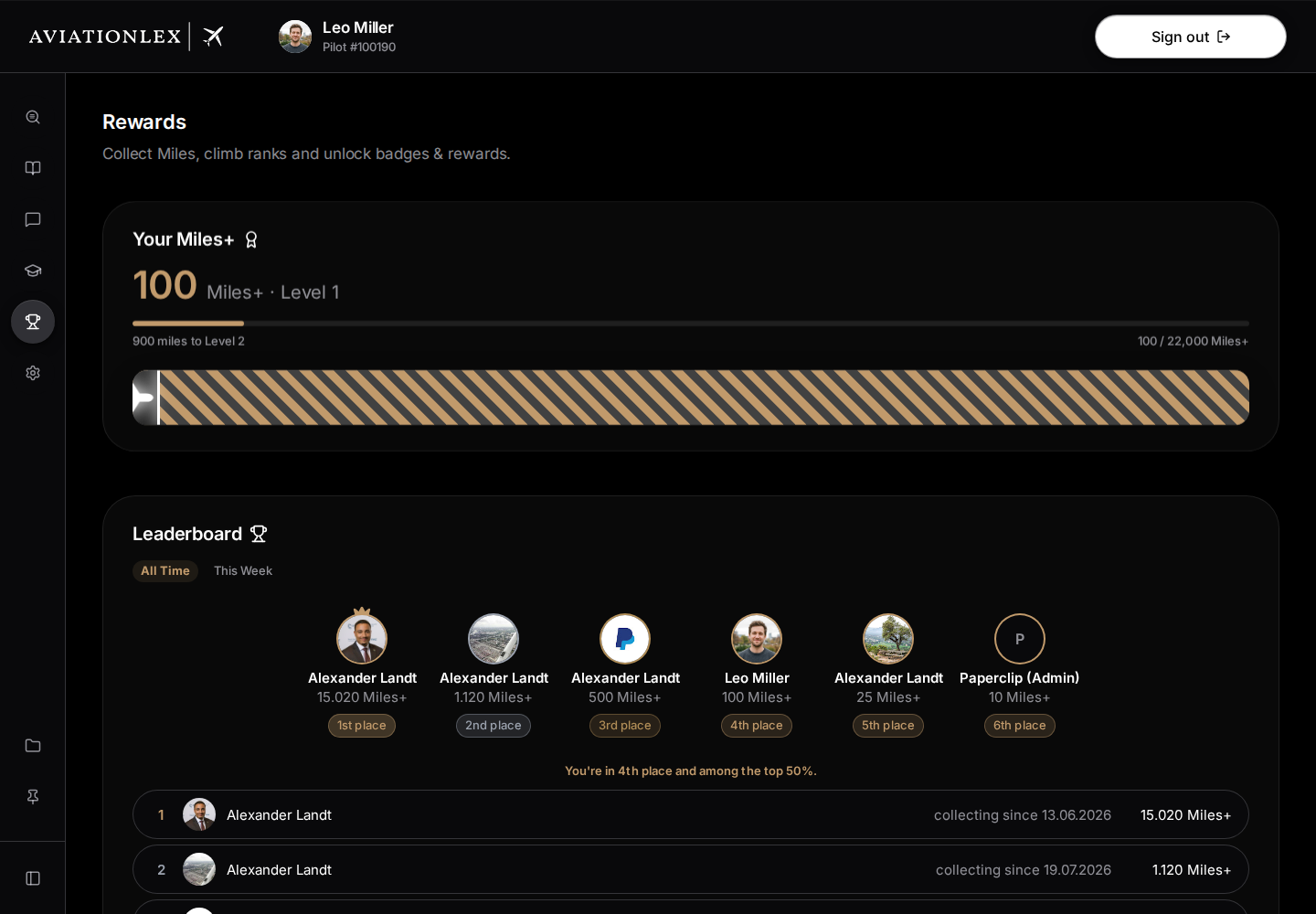
The Your Miles+ card at the top shows your balance, current level and progress to the next level. The runway below tracks progress towards 25,000 Miles+, where you unlock the Aviator Package.
Under Leaderboard, choose All Time or This Week. The view shows the leading learners, your rank and, when you are outside the top ten, nearby ranks. Your row is highlighted.
Use your daily streak and boost
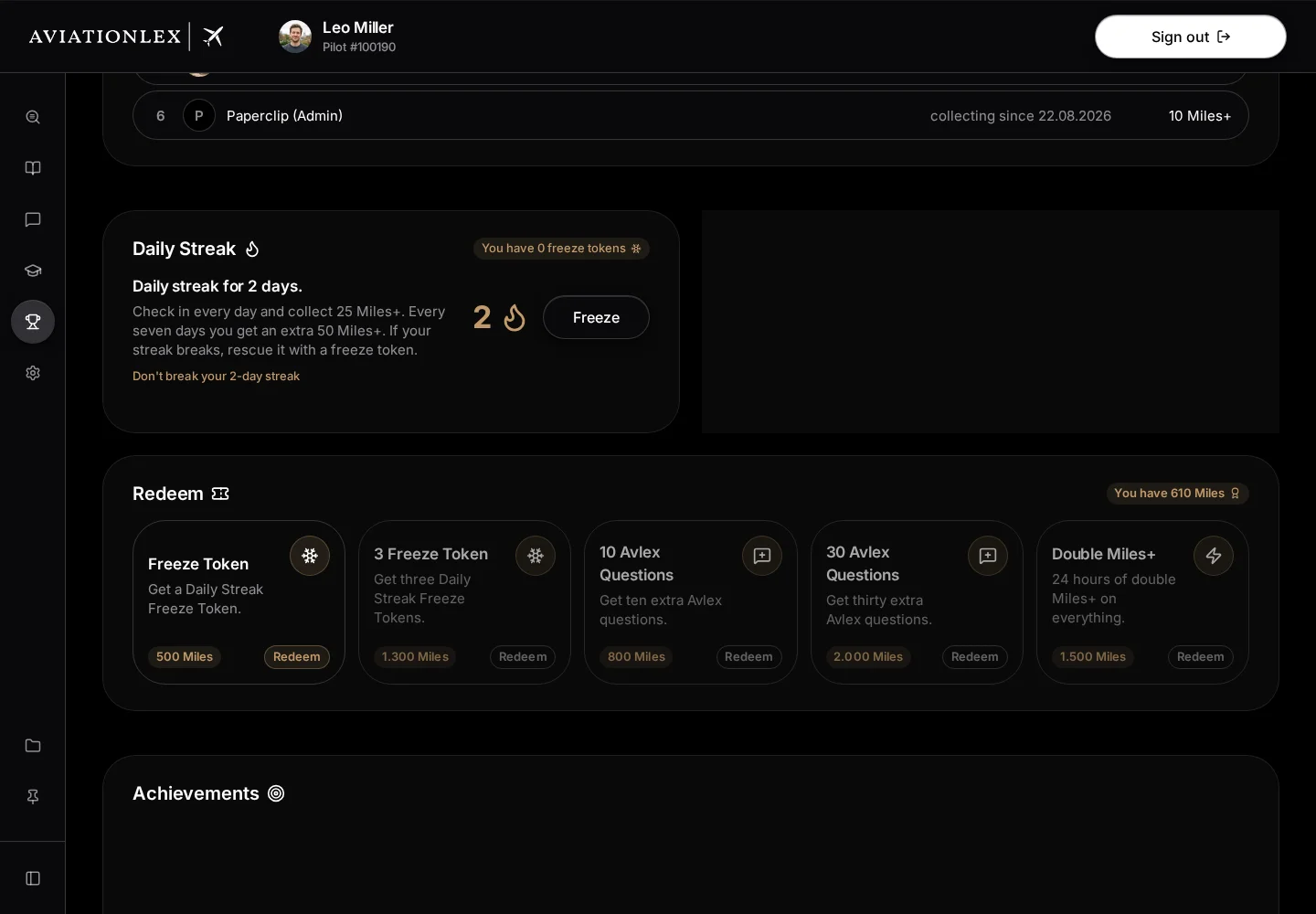
Daily Streak, below the leaderboard, shows your active days and the number of freeze tokens at the top right. Its description lists 25 Miles+ for daily activity and an additional 50 every seven days.
- Select Freeze to use a token. If you have none, the notice directs you to redeem Miles+ in Rewards.
- In Redeem a freeze?, choose Redeem freeze or Cancel.
- Read the result. Streak rescued confirms success; an intact streak has nothing to rescue.
The adjacent Miles+ Boost card explains double daily Miles+ with Professional. Upgrade now opens the plan comparison in My Account. With Professional, Activated is disabled because the boost is already active.
Read achievements and recent activity
Achievements, below Redeem, shows the available badges, their requirements and Miles+ rewards. Open means the requirement is still outstanding; Achieved marks completion. Countable requirements can show a progress bar. Role-specific badges appear only for the applicable role.
Recent Activity, below Achievements, lists up to five awards with their category, details, date and Miles+ amount. Use it to understand recent changes to your balance.
Earn Miles+
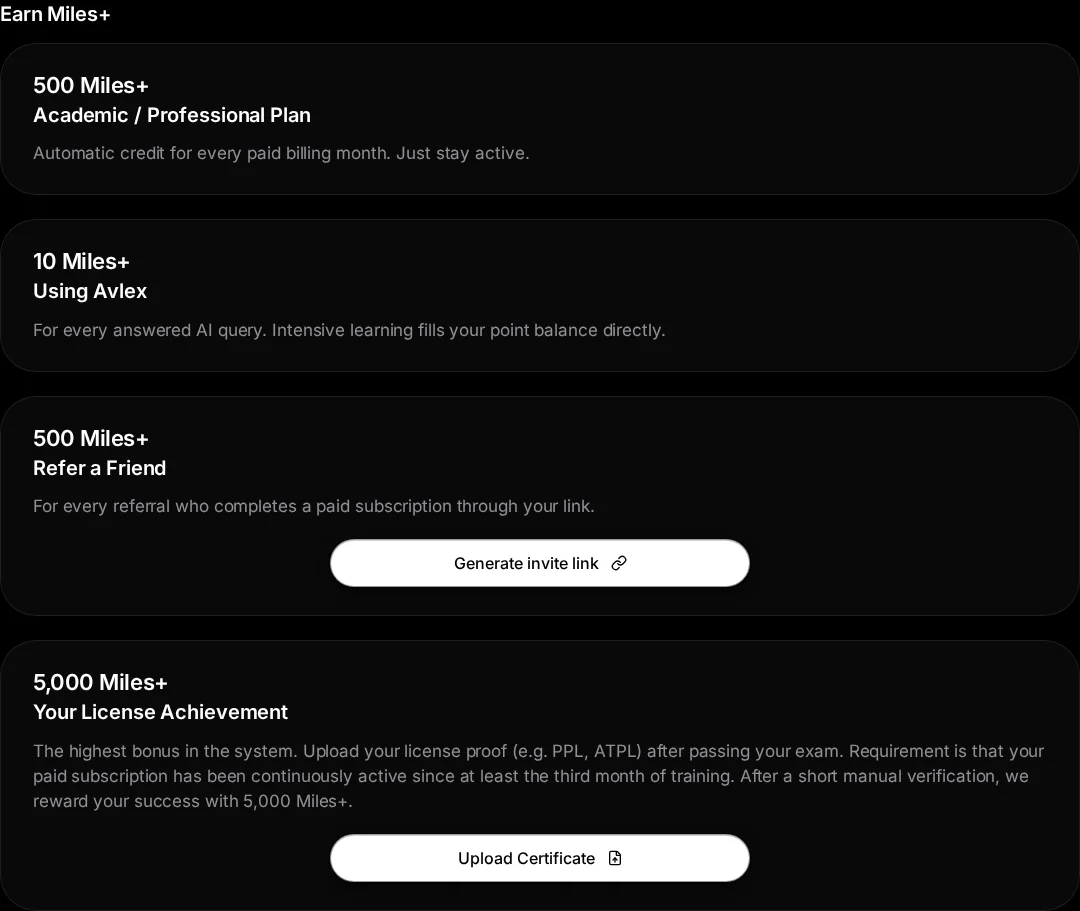
Open Earn Miles+ and read the conditions for each activity. The section lists 500 Miles+ for each paid Academic or Professional billing month, 10 for each answered AI query and 500 for a referral that completes a paid subscription.
To refer someone:
- Under Refer a Friend, select Generate invite link.
- Use the displayed Your invite link. If your browser supports sharing, select Share link. Otherwise, include the displayed link in your message.
- The person you invite must complete a paid subscription through your link. Revealing or sharing the link alone does not earn Miles+.
Submit your licence proof
The earning section lists a licence bonus of 5,000 Miles+. Your paid subscription must have been continuously active since at least the third month of training.
- Under Your License Achievement, select Upload Certificate.
- Choose your licence proof as a PNG, JPEG or PDF of no more than 5 MB.
- Close the notice with Great, thanks!. Under review… means verification is pending. Uploading alone does not award the bonus.
- An approved submission shows Certificate approved. After a rejection, Re-upload lets you submit new proof.
If uploading fails, check the file type and size, then try again. Contact support if the review status remains unclear.
Redeem a reward
The Redeem area lists the rewards available for your Miles+ balance.
- Go to Redeem. Compare your balance with the Miles+ cost of each available reward.
- Select Redeem on your chosen reward. The button is disabled if your balance is too low.
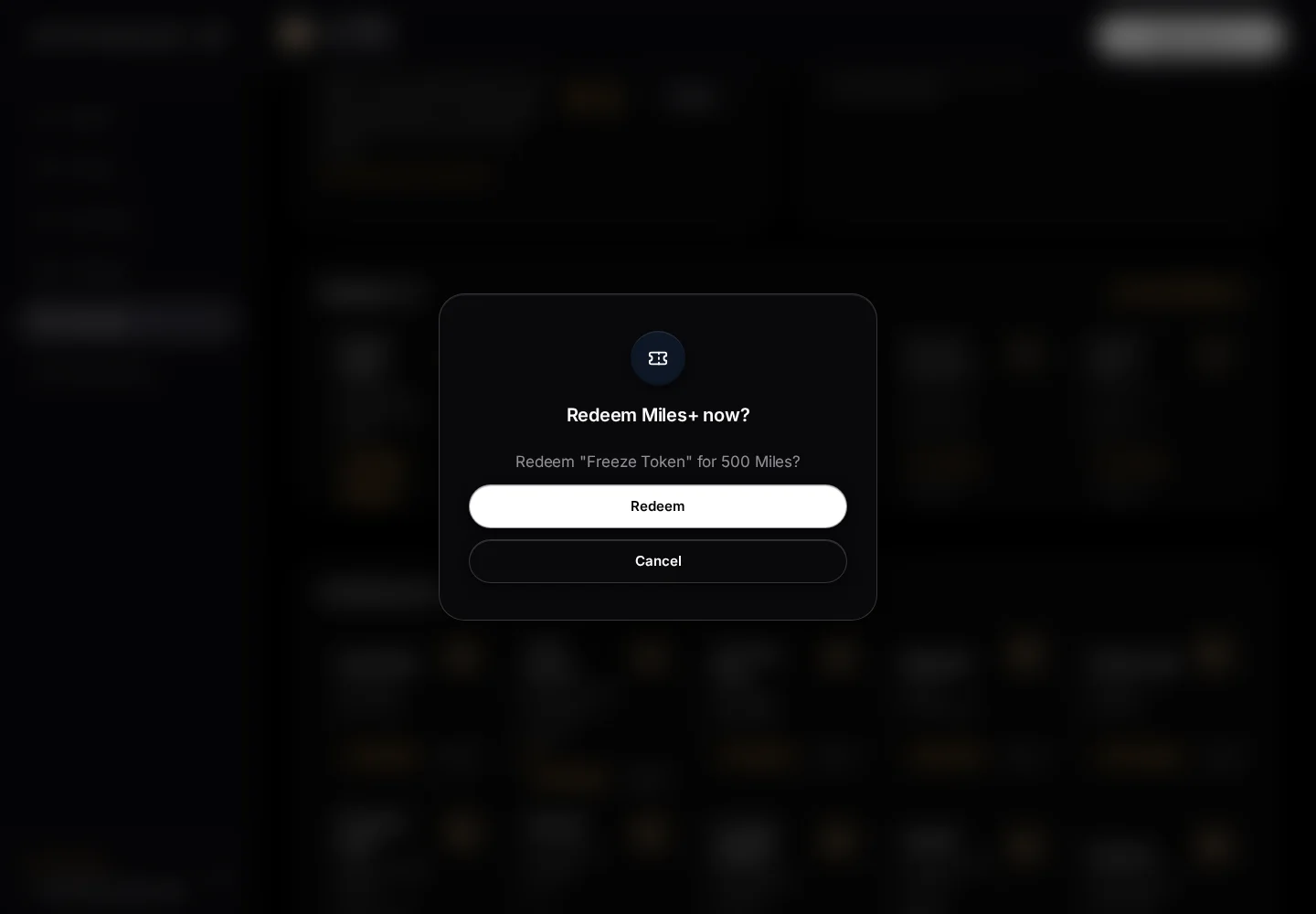
- Check the reward and cost in Redeem Miles+ now?.
- Select Redeem to confirm or Cancel to stop.
- Look for Redeemed and the updated balance. After an error, check the balance before trying again.
No redeemables available. means there is currently no offer available. The leaderboard compares you with other learners. It offers an overall ranking and a weekly comparison; this view has no participation or display-name settings.