Save passages for later
Bookmarks and folders help you find useful documents or sections again without repeating a search. Sign in to your account to use them.
Bookmark a passage
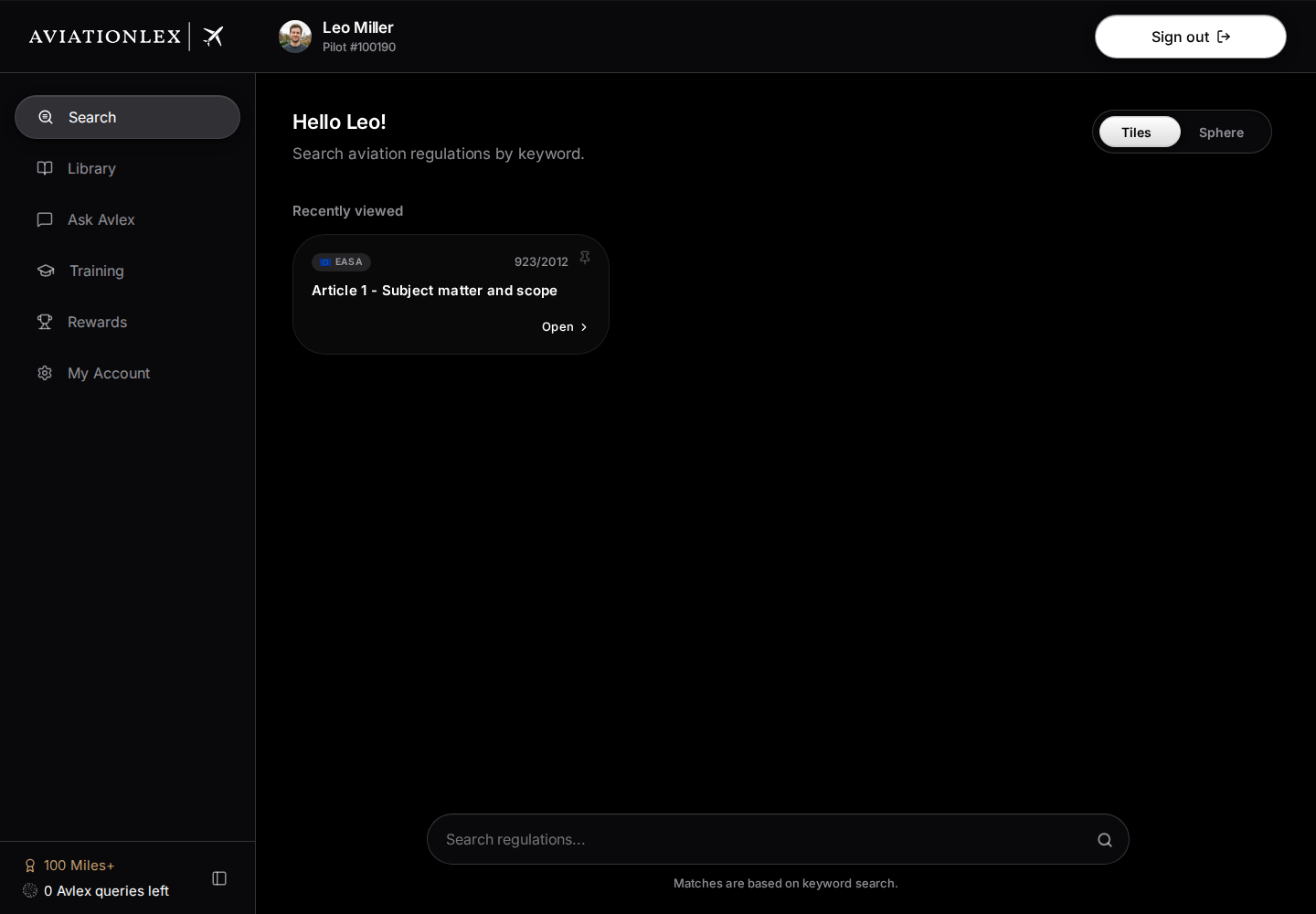
The pin controls save a document or passage so you can return to it.
-
Open the document or section in the Library.
-
Open … (More) at the top. Choose Pin page for the current PDF page or Pin entire document for the whole document.
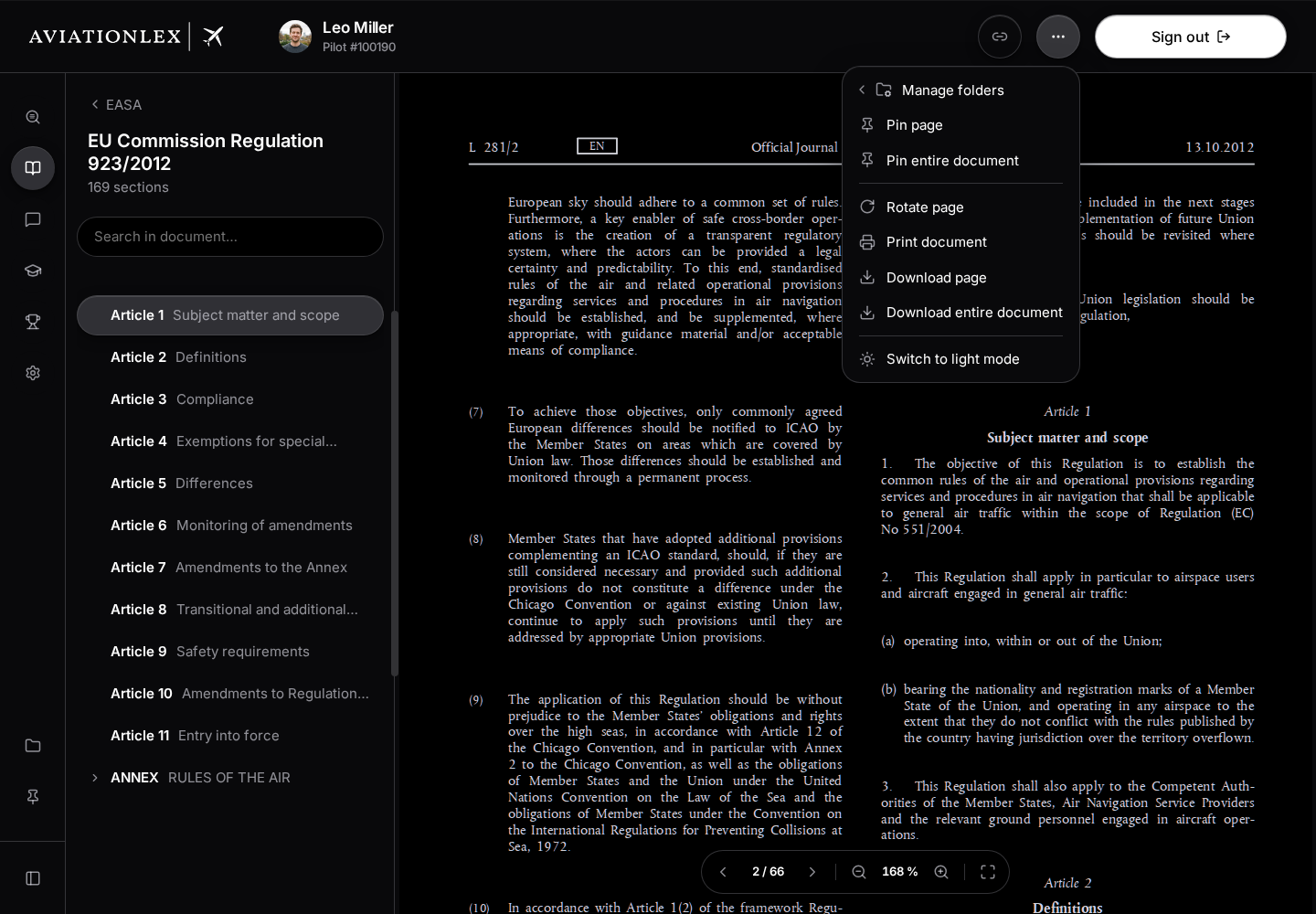
Library menu with pin and folder actions. -
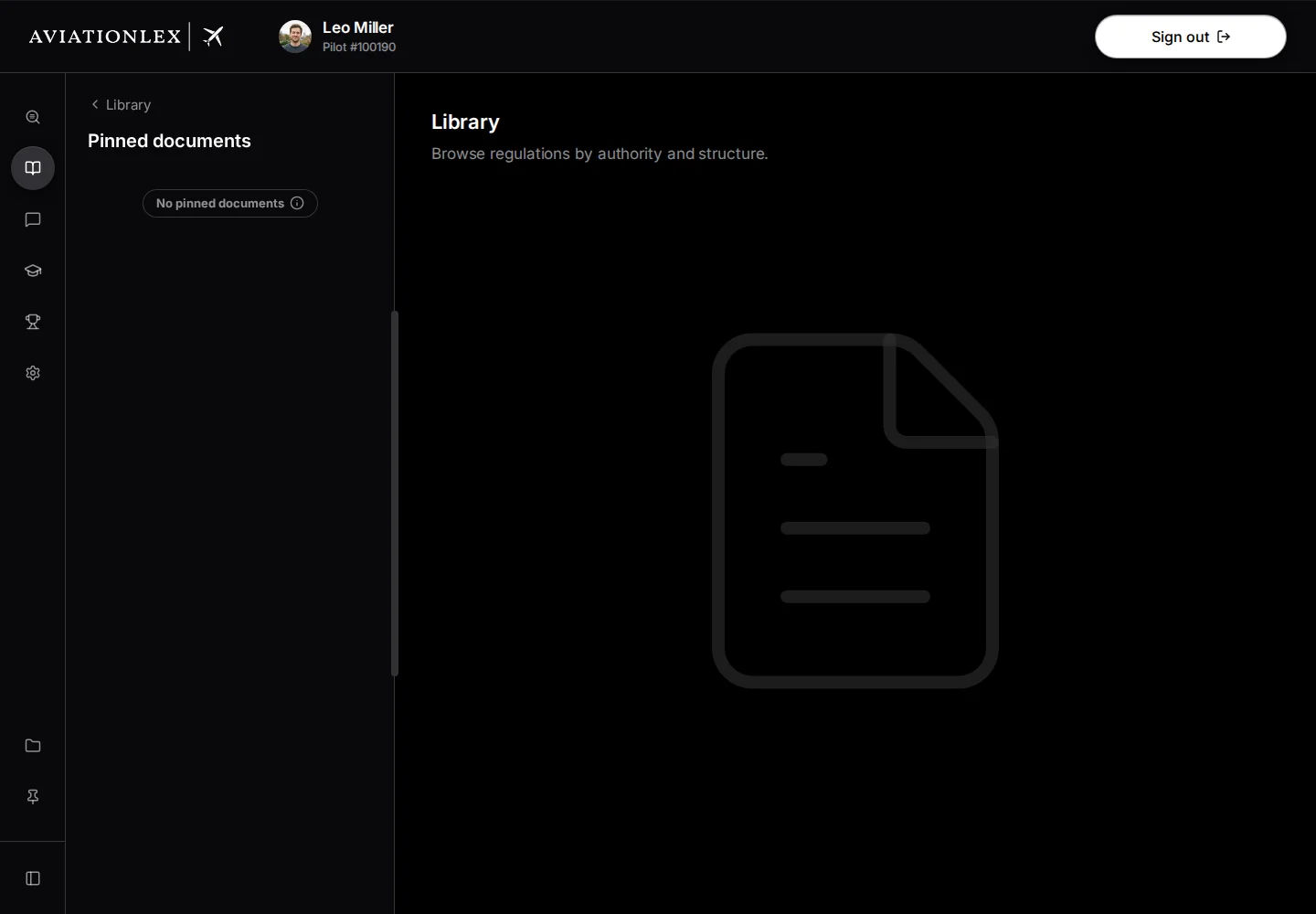
If no folder is open, find the item later under Pinned in the sidebar. If the Library itself is displaying a folder, the item is saved there. Merely opening a folder panel beside the sidebar does not change this destination.
-
Select the saved item to open its location in the Library.
Organise by topic
Folders in the left sidebar group saved documents by topic.
- Select the plus button beside Folders.
- Enter a name and press Enter or select the check mark. Escape cancels.
- Open … (More) for the document or section, then select Add to folder or Manage folders. This saves the selected section, rather than the current PDF page or the entire document. Choose the folders you want; a tick shows each assignment. Click again to remove that assignment. Each click saves immediately; Done closes the selection. Create folder closes the dialog and opens the name field in the sidebar.
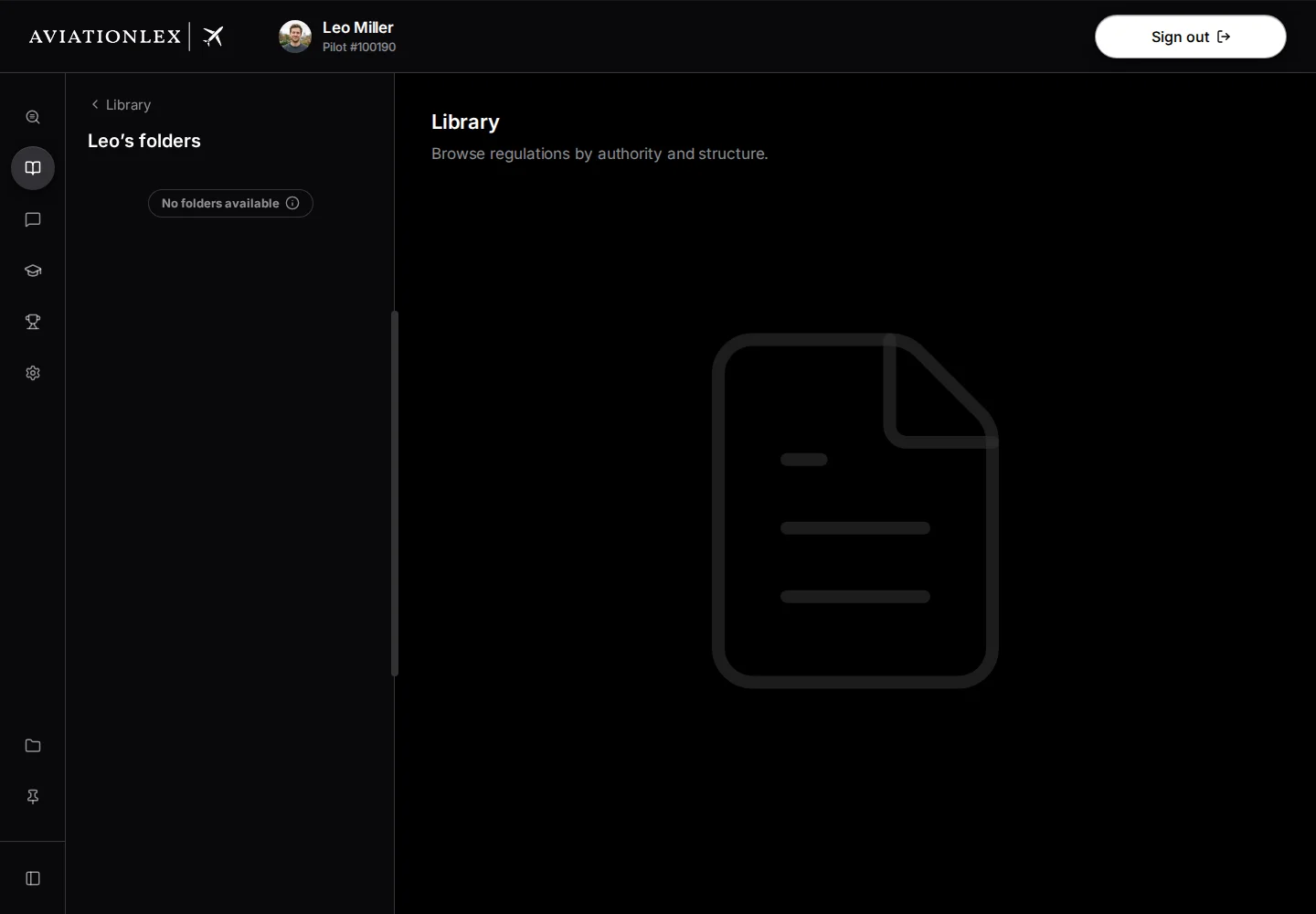
- Click a folder in the sidebar to show its entries in a panel beside the sidebar, without leaving your current tab. Click an entry to open it in the Library. Click the same folder again to close the panel. Drag the panel’s right divider to adjust its width; double-click the divider or folder heading to close it.
Right-click an entry under Pinned and select Add to Folder to move that saved entry into one folder. Choose a folder in the dialog. The entry then leaves the main Pinned list. Create Folder starts a new folder name in the sidebar; Cancel closes the dialog.
Edit or remove entries
Right-click a folder or pinned entry to open its context menu. Rename opens the name field; Enter or the check mark saves, and Escape cancels. Change color opens the icon colour palette. Drag and drop entries within Folders or Pinned to reorder that list.
The … (Edit) button beside a list heading shows a pencil and bin beside each entry for renaming or removing it. The plus button beside Pinned opens the Library; it does not create a blank bookmark. If entries are hidden, click the list heading or +… more to show all. With the sidebar collapsed, use the folder or pin icon to open the corresponding list.
In the PDF’s More menu, Unpin page and Unpin document remove the corresponding saved item at the Library’s current destination. In the sidebar, Unpin removes the selected pinned entry after confirmation. Delete Folder removes the folder and the pins stored inside it. Read the confirmation before deleting. The original regulation remains available.
If a change fails, reload the view and check what was saved before trying again.